


This guide covers how to translate a WordPress site using Gato AI Translations for Polylang, a plugin that connects to AI services to automate content translation.
It covers several common scenarios: posts, pages, custom post types, ACF custom fields, and SEO metadata.
Before you start translating, it’s worth taking a few minutes to review and clean up your original content first. Any typos, broken sentences, or formatting issues in your original posts will be copied into every translation—so fixing them once upfront saves you a lot of rework later.
Setting Up the Plugin
The plugin requires Polylang to be installed and active—it handles the multilingual structure, while Gato AI Translations handles the actual translation.
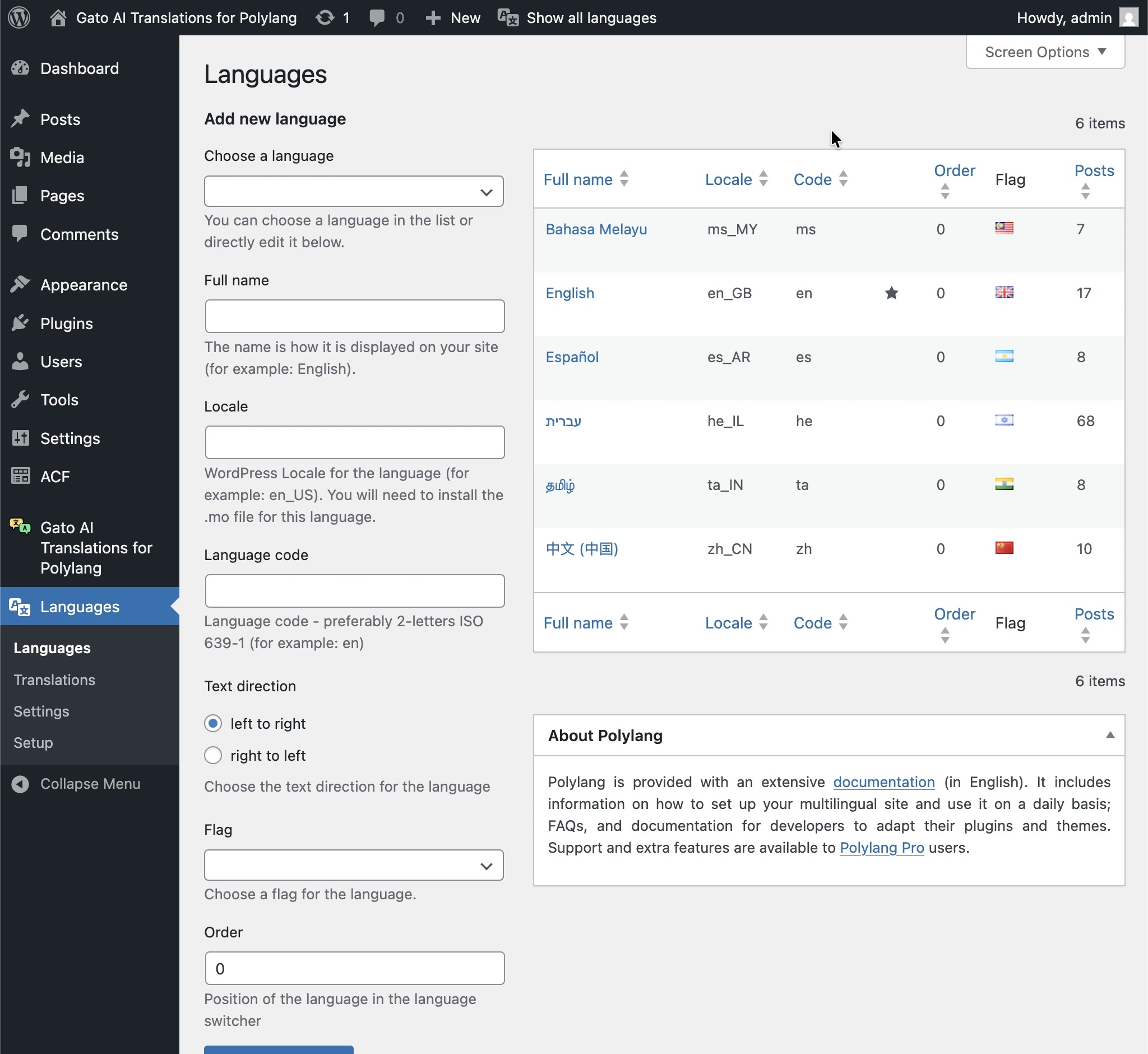
Go to Polylang’s Languages menu page and add the languages you want your site translated into. The plugin will generate translated content for each language configured here.
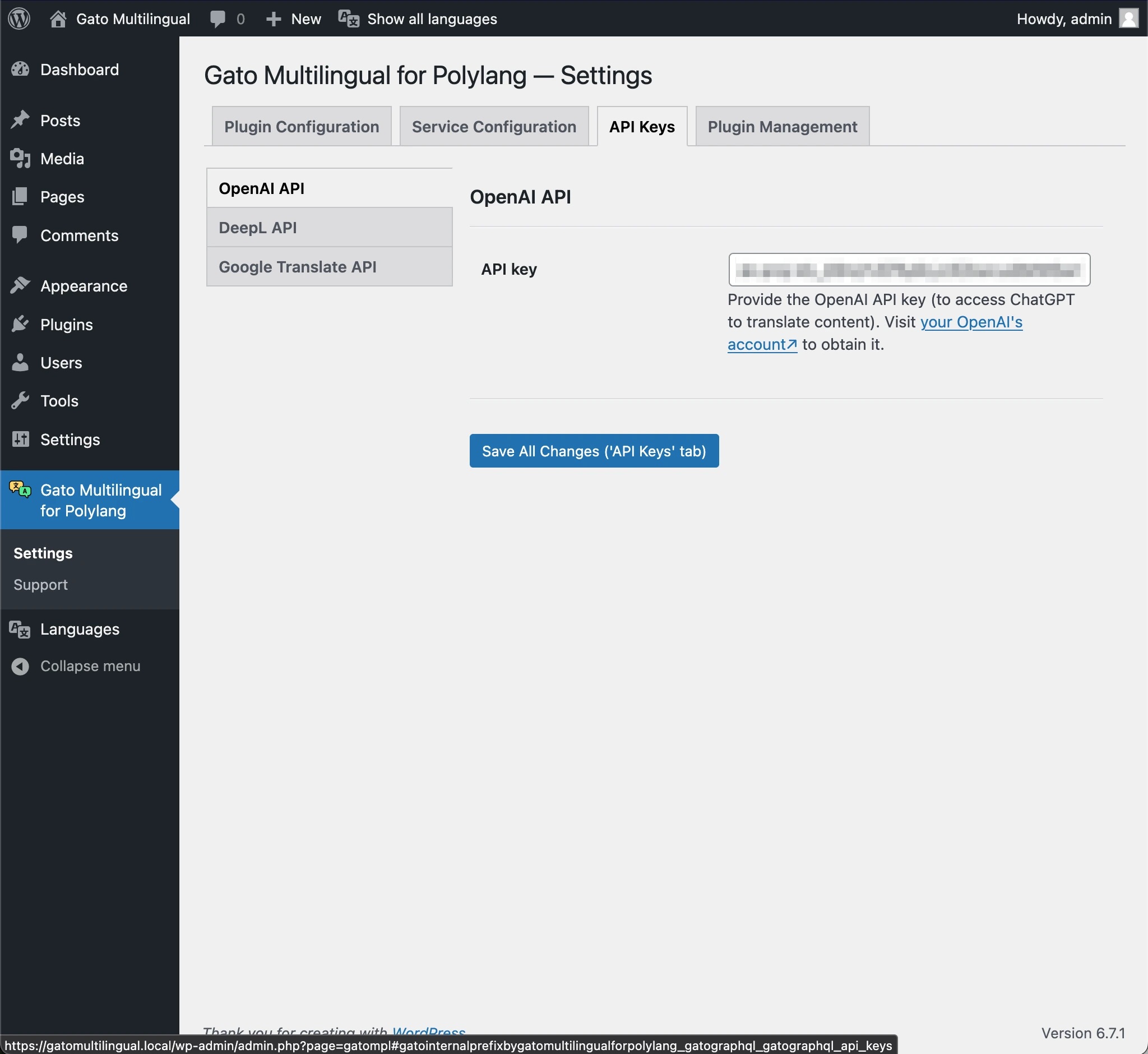
Next, go to Gato AI Translations for Polylang > Settings. Select the AI service you want to use (ChatGPT, Claude, DeepL, Google Translate, or others) and enter the corresponding API key.
Translating New Content Automatically
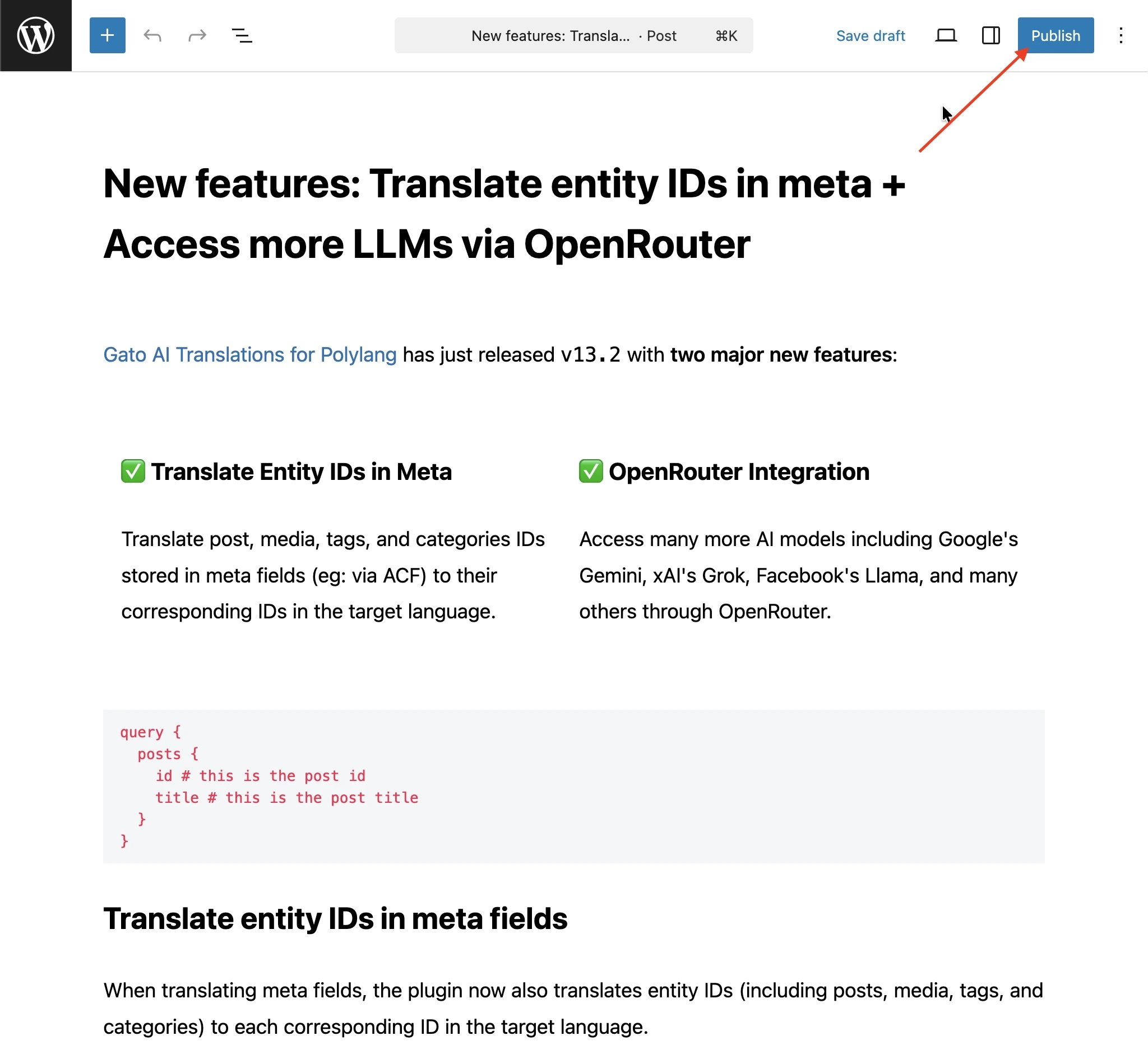
With the plugin configured, publishing a post or page will automatically trigger translations for all languages you’ve set up in Polylang. No additional steps are needed—the translations are created when you hit Publish.
Translating Your Existing Content
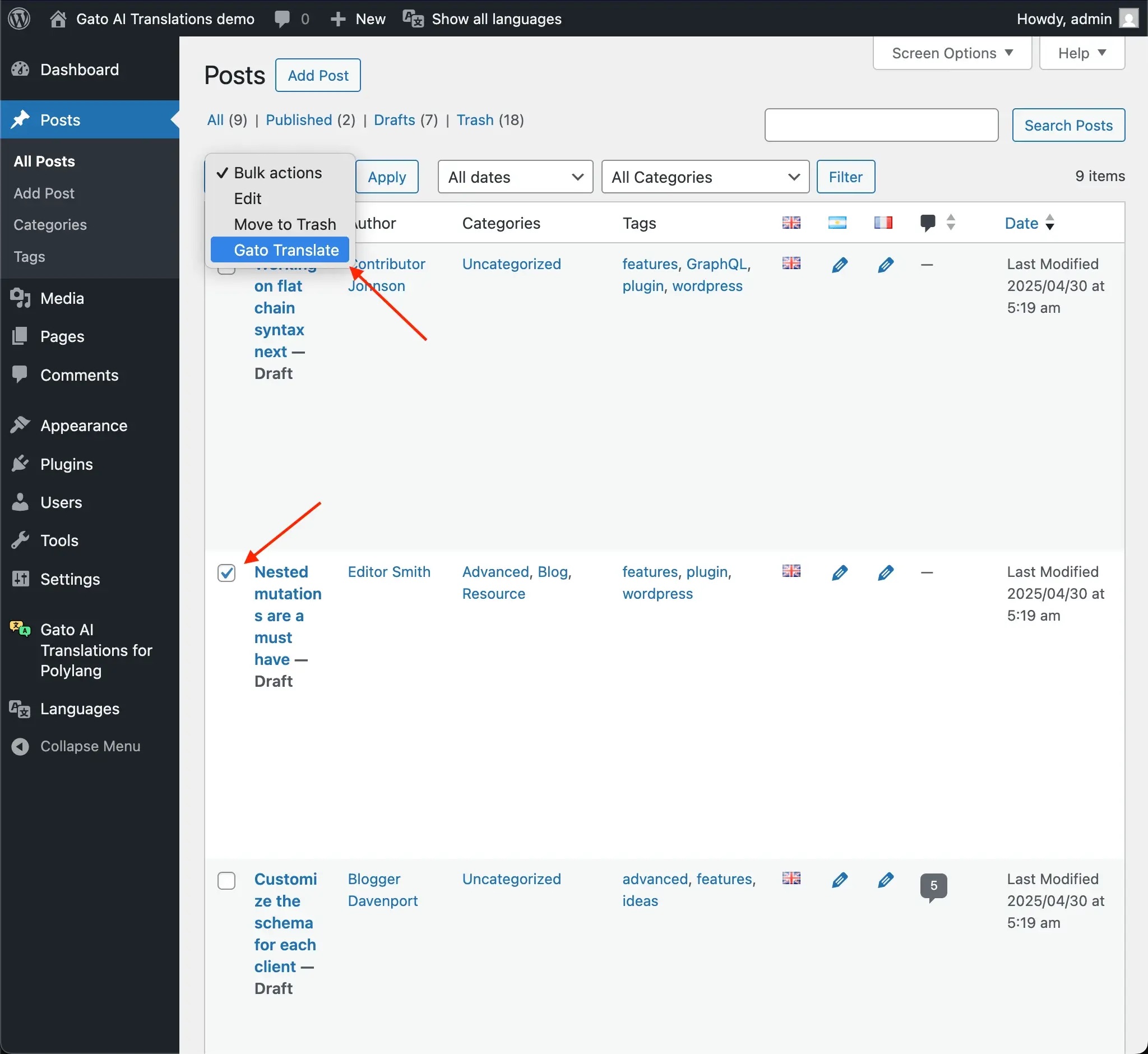
To translate content that’s already on your site, use the Bulk Actions feature.
Go to Posts (or Pages, or any other content list), check the items you want to translate, select Gato Translate from the Bulk Actions dropdown, then click Apply.
Translating Content From Other Plugins (Custom Post Types)
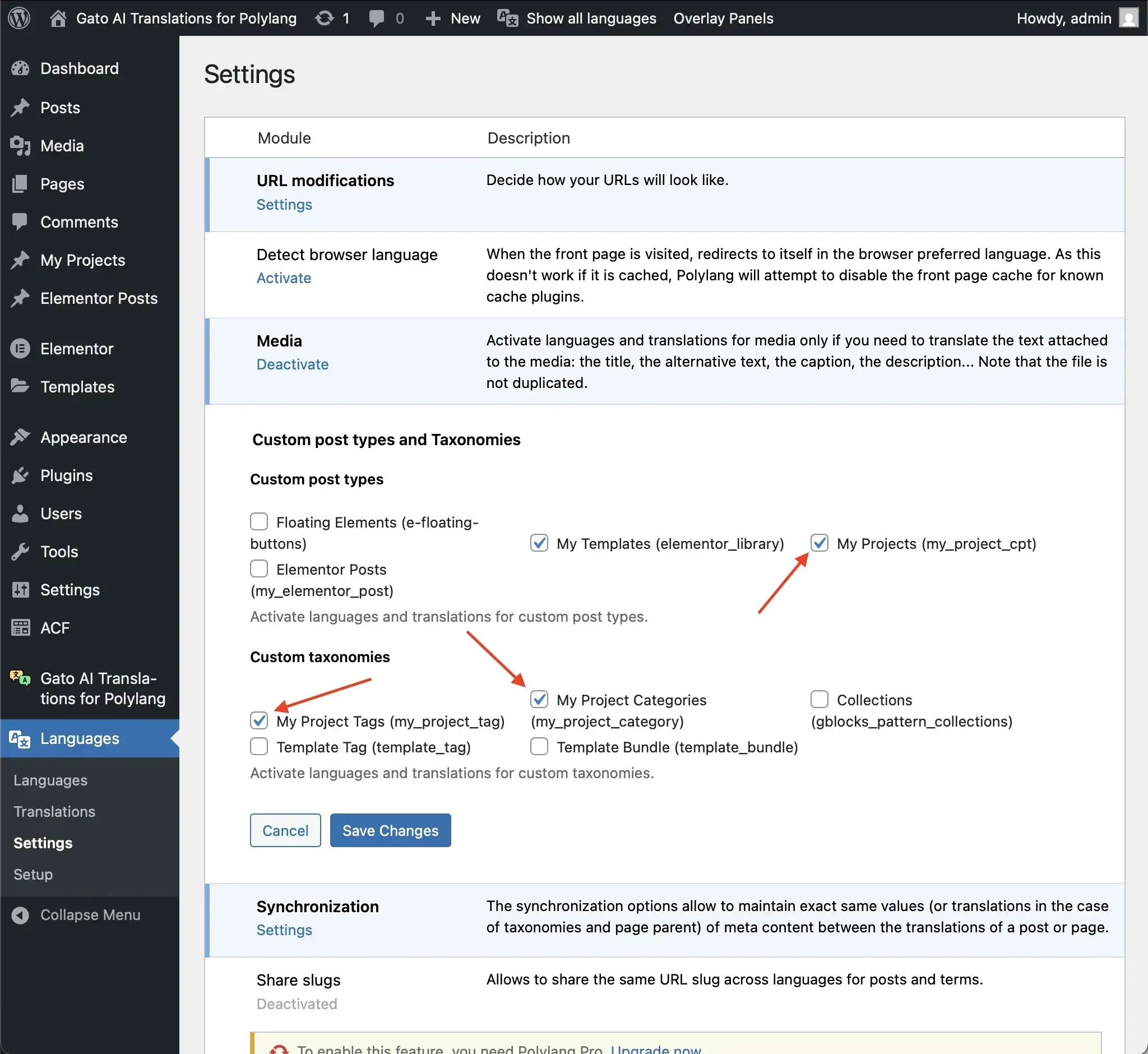
Plugins like WooCommerce, event managers, or portfolio tools register their own content types (custom post types). To translate those, you first need to enable them in Polylang.
Go to Languages > Settings, find the Custom post types and Taxonomies section, and enable the ones you want translated.
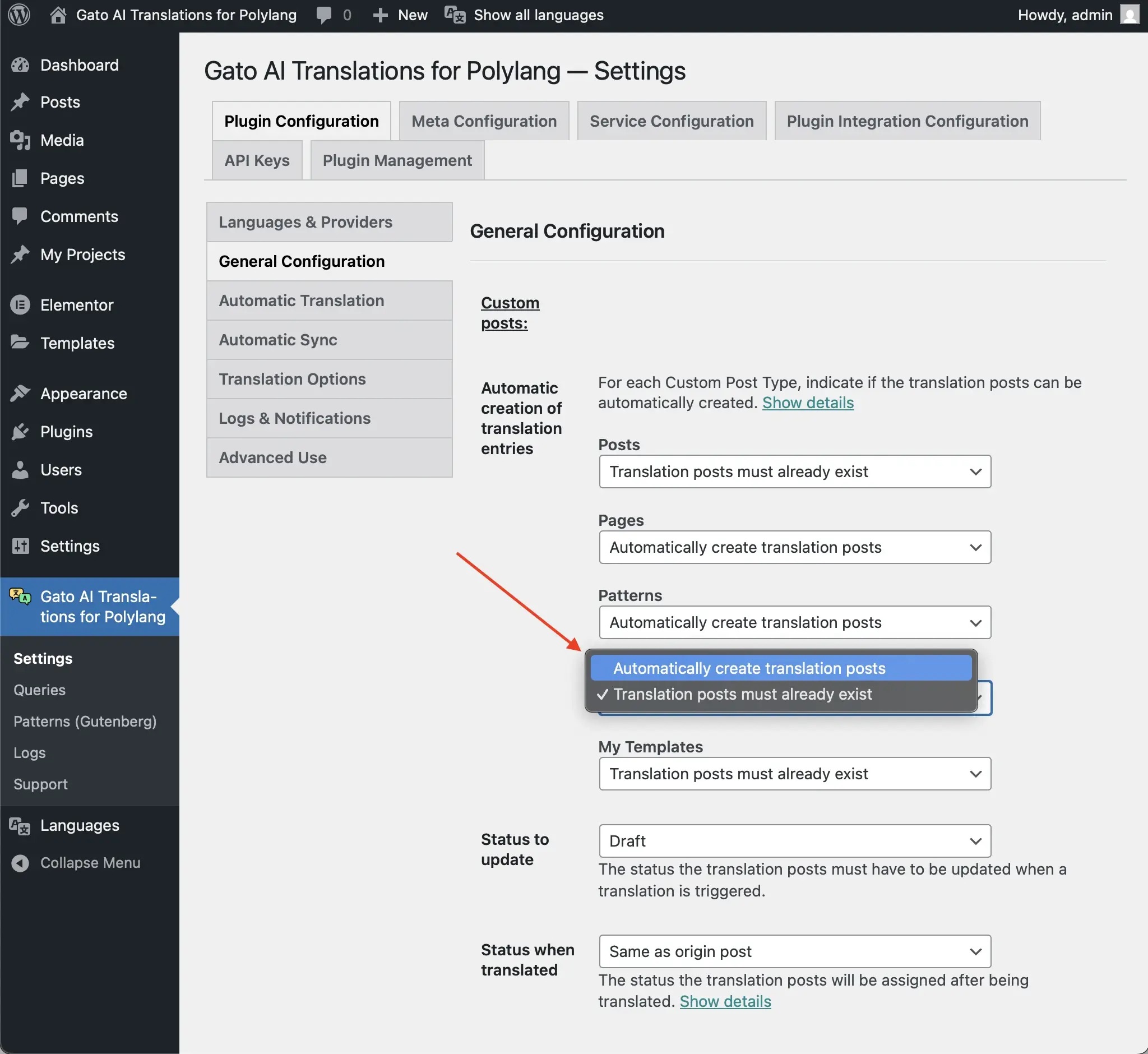
For content types that use the standard WordPress wp_insert_post function internally, you can enable Automatic creation of translation entries in the plugin’s Settings. This creates translated versions automatically when new entries are added.
After that, translating works exactly the same as with regular posts: publish for automatic translation, or use Bulk Actions to translate existing content.
Translating Advanced Custom Fields (ACF)
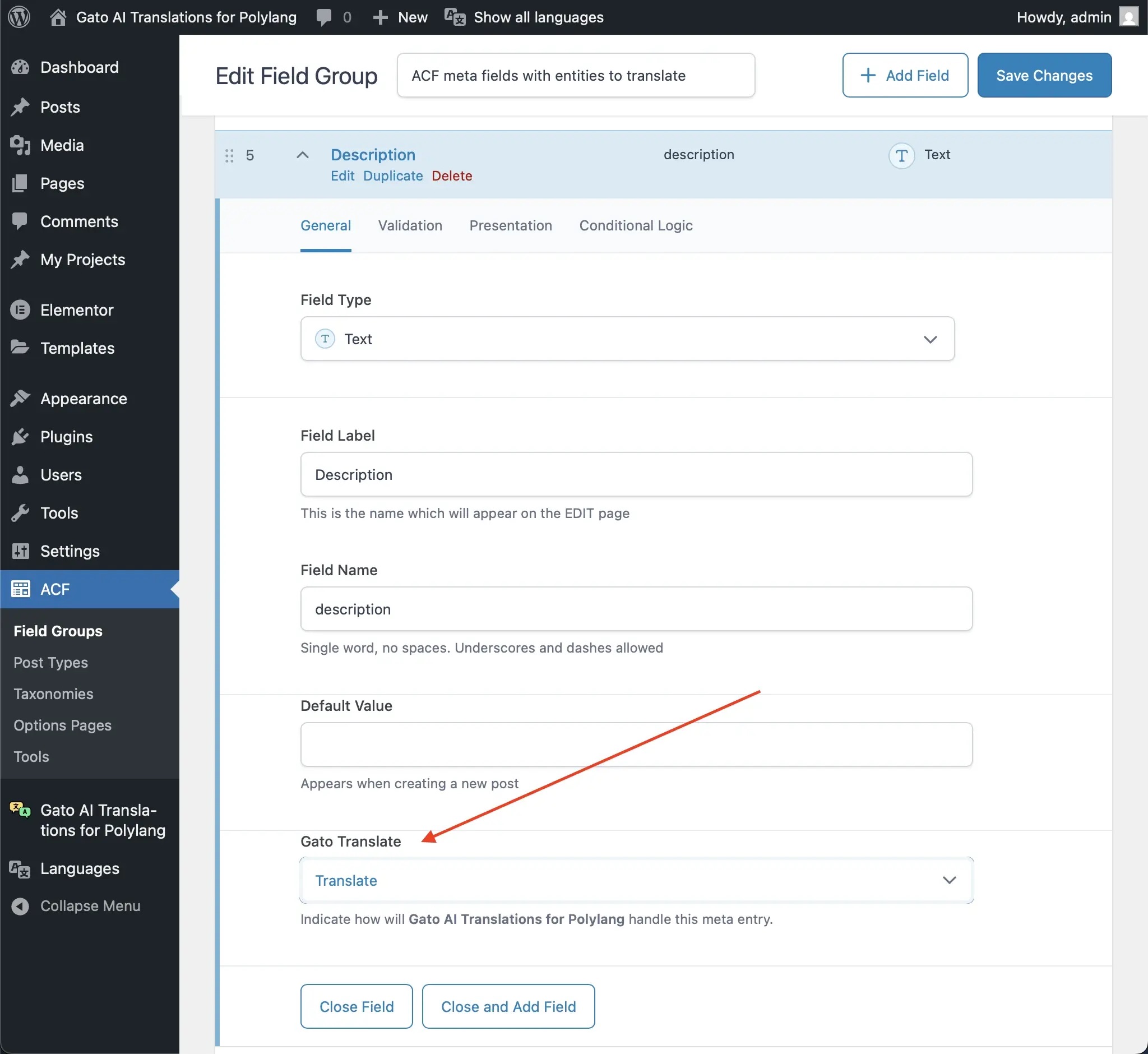
If your posts use Advanced Custom Fields, those fields can be translated too. Inside each ACF field group, a Gato Translate section lets you configure each field individually: Sync (copy as-is), Translate (translate the text), or Translate entity references (replace linked posts or images with their translated equivalents).
Fill in your ACF fields on the source post as usual.
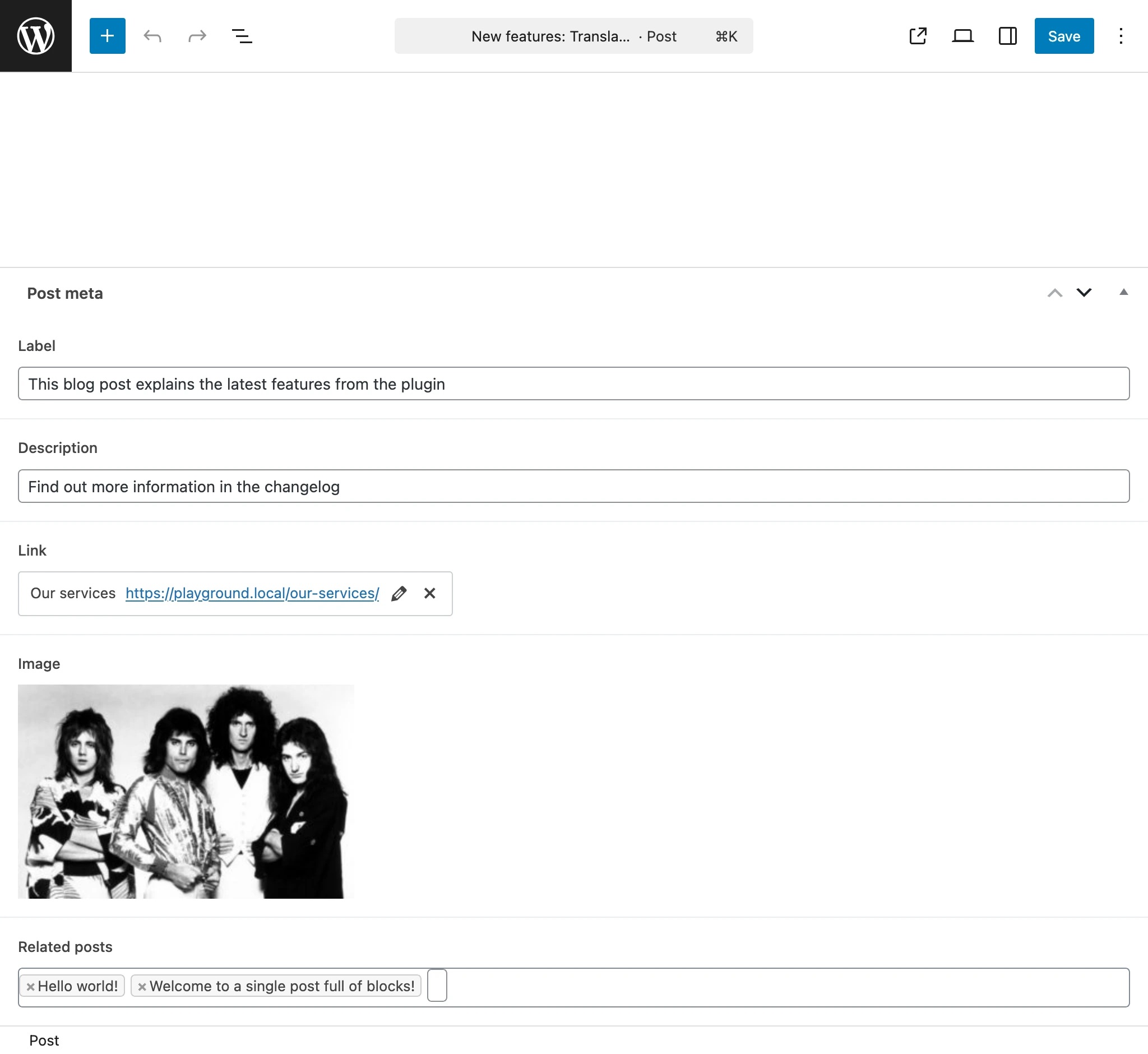
When the post is translated, ACF fields are handled according to their configuration—text fields get translated, and entity references are replaced with their translated counterparts.
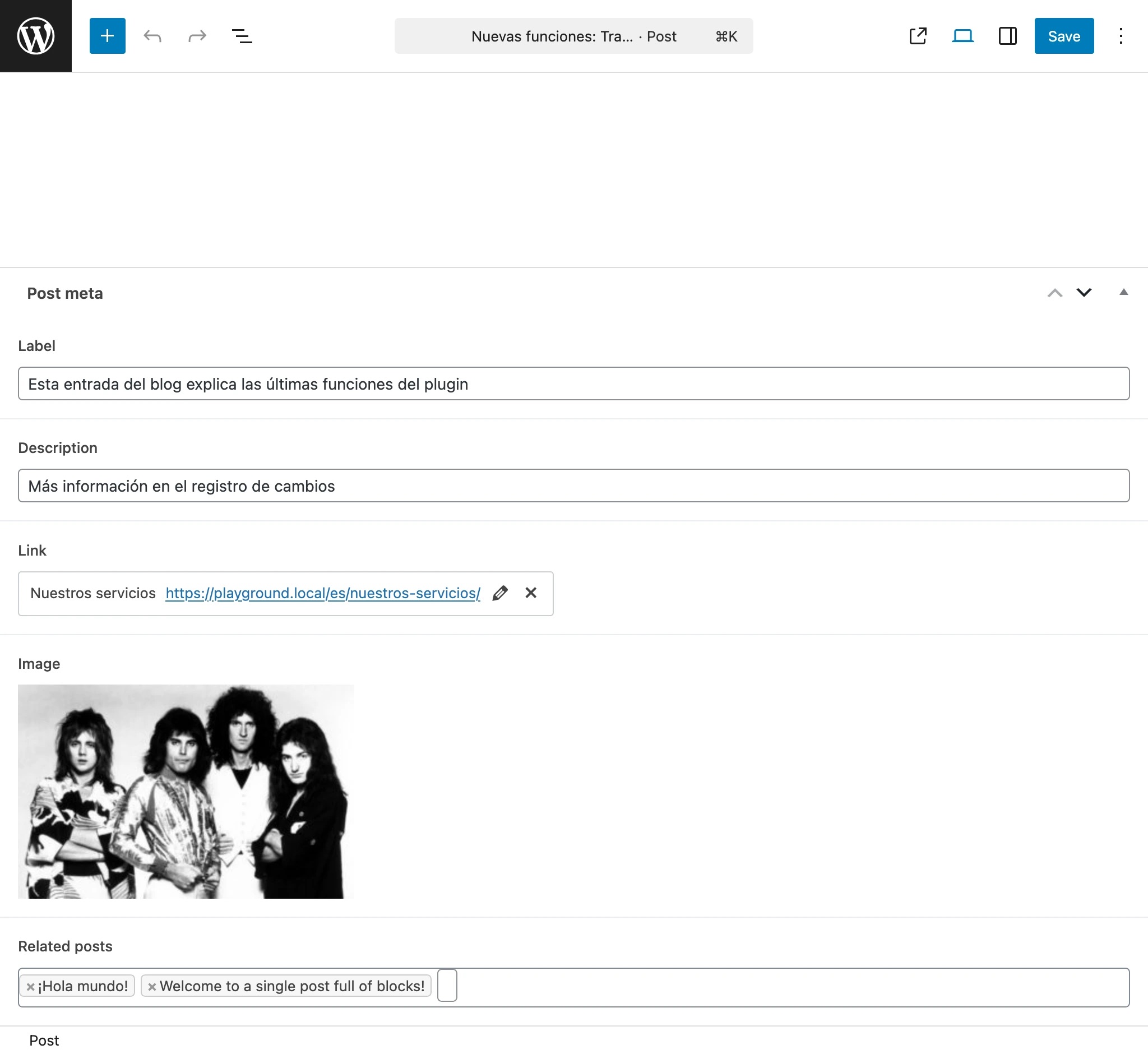
Translating SEO Metadata
The plugin translates SEO titles, meta descriptions, and related fields for each translated page, for the most popular SEO plugins.
These integrations are enabled by default under Settings > Plugin Integration Configuration.
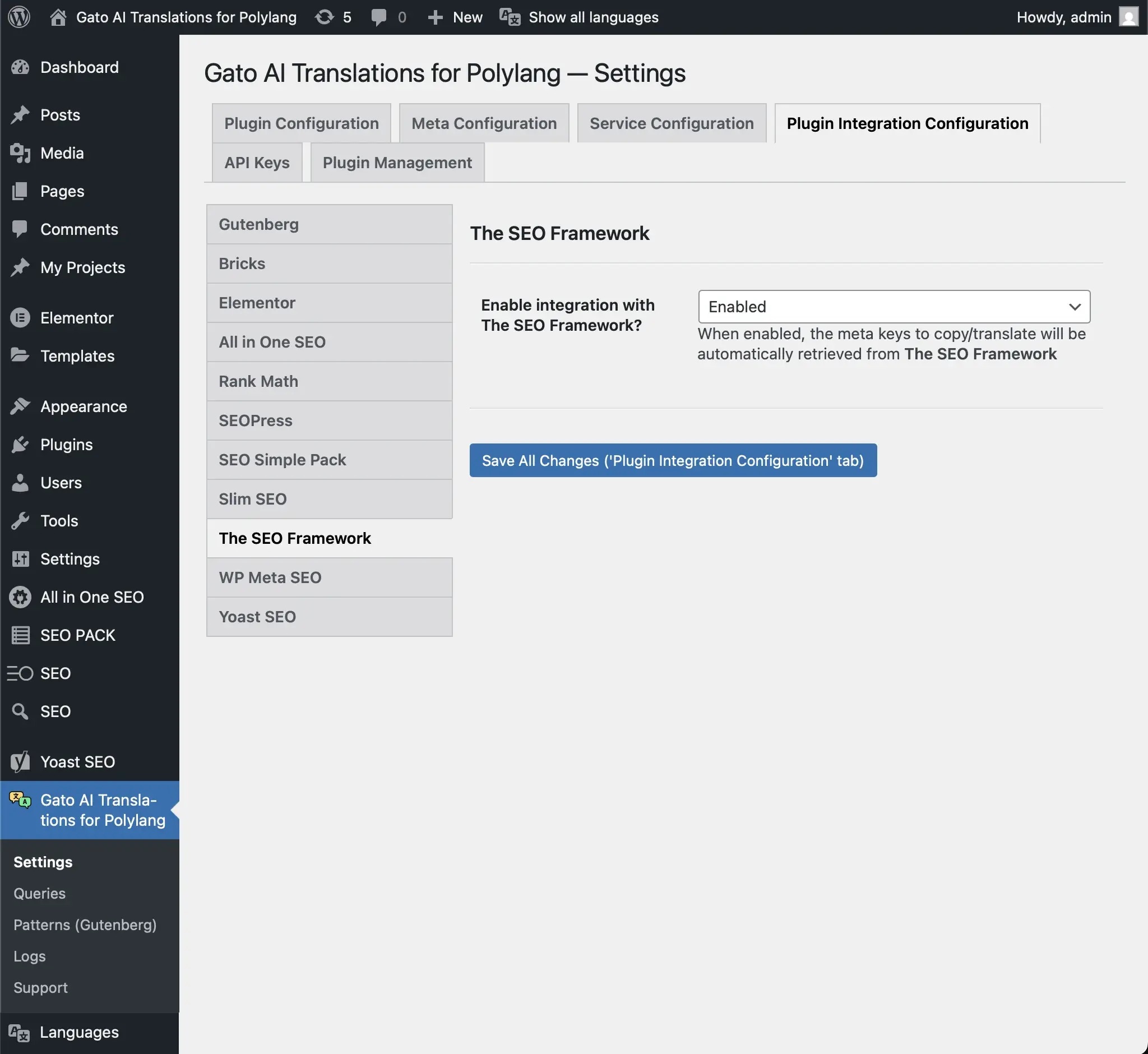
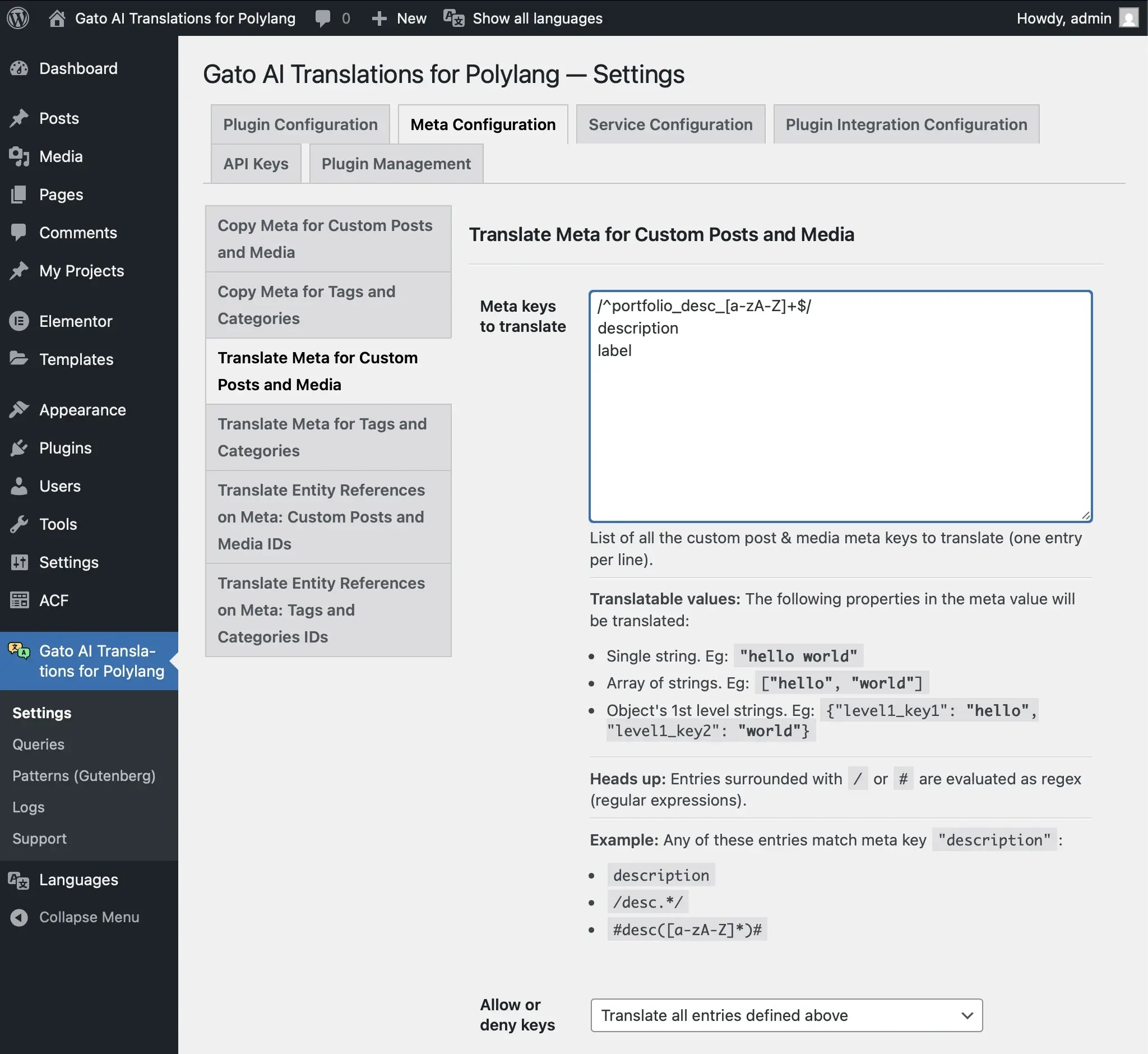
For any custom meta fields not covered by these integrations, you can configure them individually in Settings > Meta Configuration—specifying whether each field should be copied, translated, or linked to its translated counterpart.
Translating Content for the Classic and Block Editors
Both the Classic Editor and Block Editor (Gutenberg) are supported without any additional configuration.
With the Block Editor, the plugin extracts and translates the text content inside each block—paragraphs, headings, buttons, image captions, quotes, etc.—while leaving the block structure and layout intact.
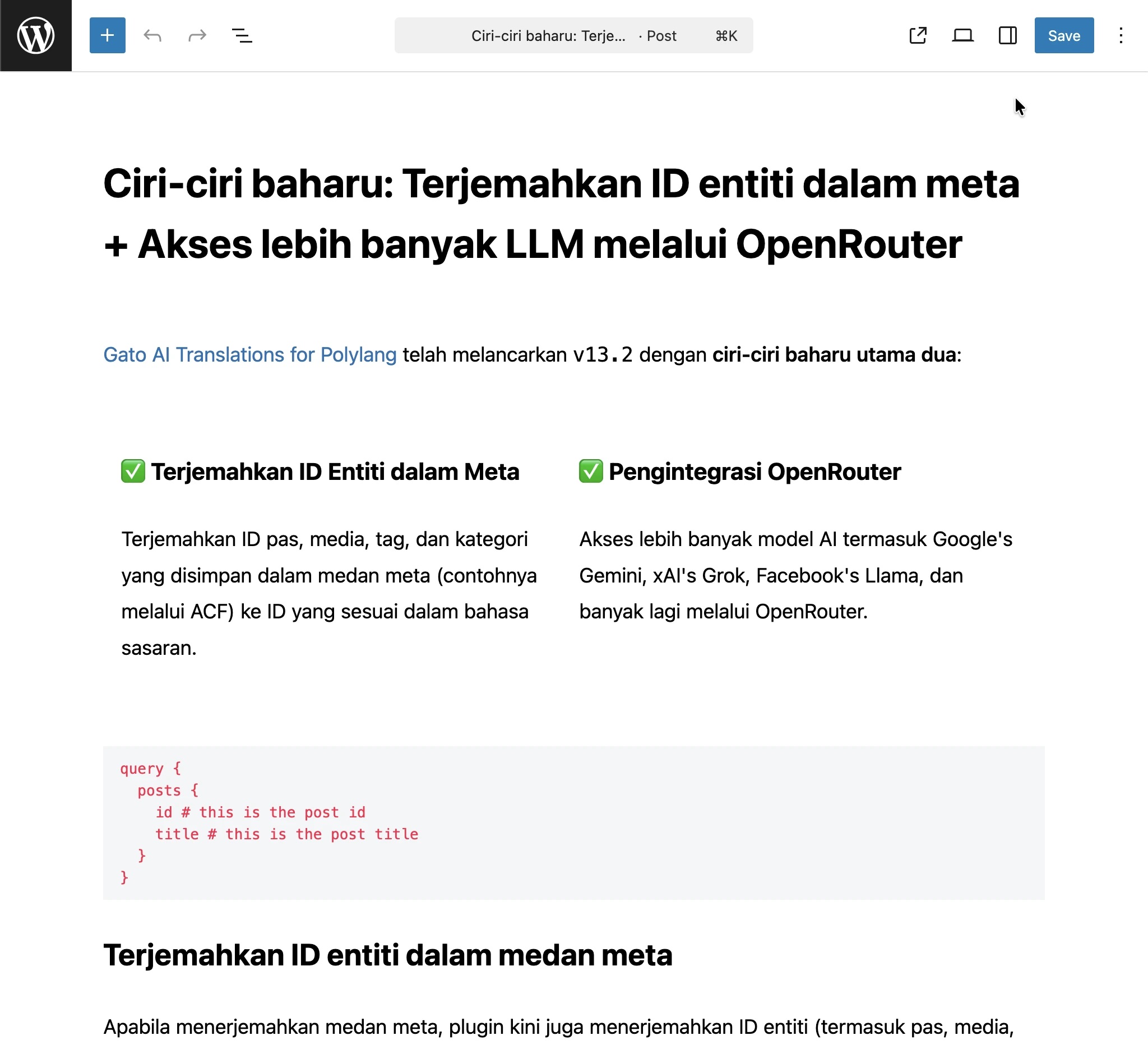
With the Classic Editor, the full post content is sent to the AI and replaced with the translation in a single operation.
Wrapping Up
Gato AI Translations for Polylang covers pretty much everything you’d need to translate a WordPress site. Setup is minimal: install the plugin, connect your Polylang languages, and add an API key for your chosen AI service, and you’re ready to start translating your site.