

Large WordPress websites can quickly outgrow a simple navigation menu. A standard dropdown can become difficult to organize when you have dozens of product categories, multiple content sections, or several levels of navigation.
A WordPress mega menu gives you more room to organize these links into clear groups and columns, making larger site structures easier to browse. You can use it for product categories, resources, services, or other sections that would be difficult to fit into a traditional dropdown.
The good news is that you don’t need custom development to create one. With Blocksy’s Advanced Menu functionality, you can build a multi-column mega menu, adjust its width, and add richer content without writing code.
In this guide, we’ll cover what mega menus are, when to use them, how to structure them, and how to create one with Blocksy, along with tips for usability, mobile navigation, and performance.
What Is a Mega Menu in WordPress?
A WordPress mega menu is an expanded navigation menu that displays a large number of links in a structured layout. Instead of showing every link in a single vertical list, a mega menu can divide navigation items into multiple groups and columns, making larger site structures easier to scan.
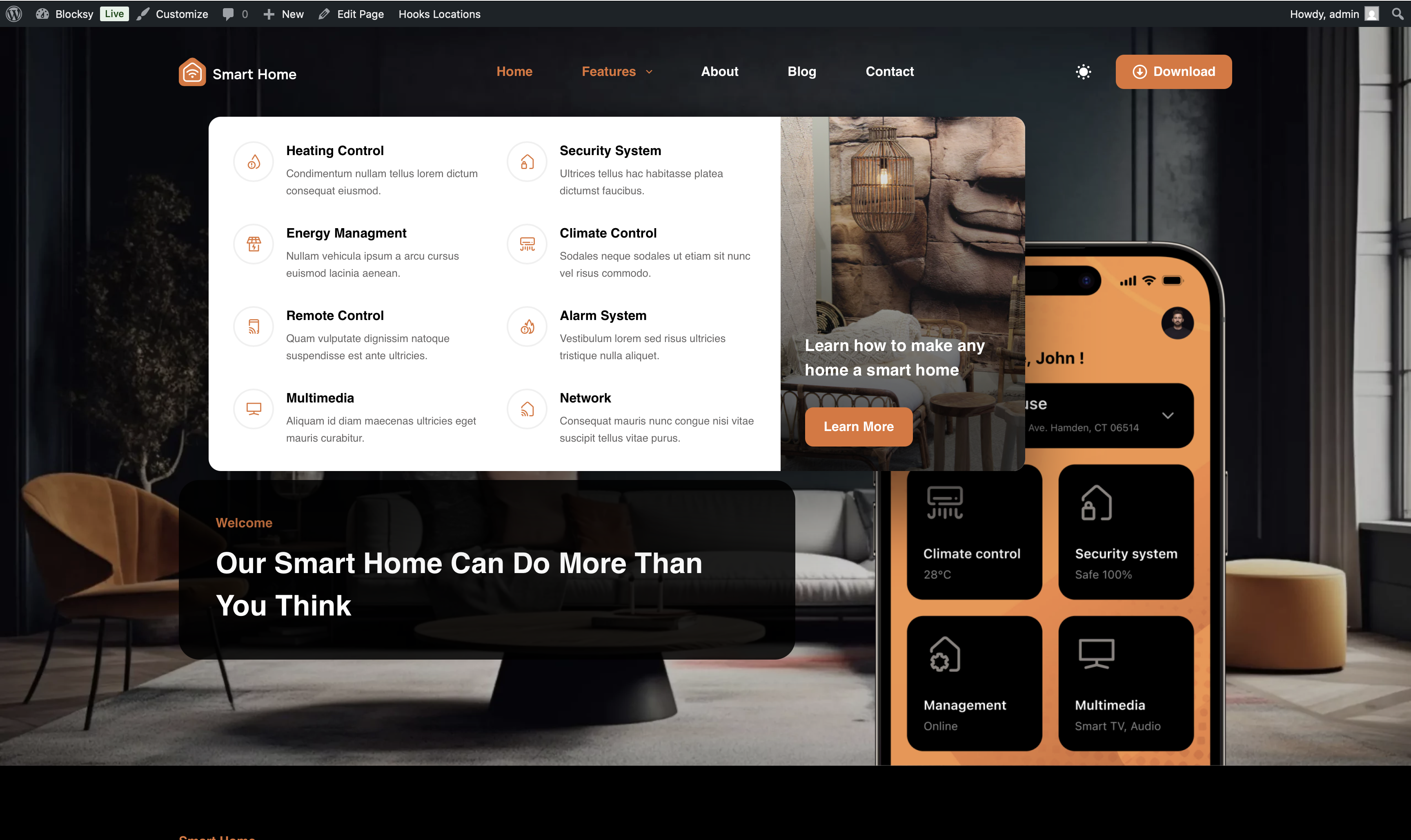
A traditional dropdown menu usually works well when you only need to show a small number of related pages. However, as the number of links grows, users may have to move through several levels of nested dropdowns to find what they need. A mega menu brings more of that navigation into view at once.
Standard Dropdown vs. Mega Menu
The main difference is the amount and organization of information each menu can accommodate.
Standard dropdown menus:
- Display a relatively small number of links
- Follow a simple, linear hierarchy
- Work well for smaller websites with straightforward navigation
Mega menus:
- Organize links into multiple categories or groups
- Use multiple columns to make navigation easier to scan
- Accommodate more navigation options without adding multiple layers
- Work particularly well for large stores, content-heavy websites, and sites with extensive page structures
Remember, a mega menu isn’t simply a larger dropdown. Its primary purpose is to organize complex navigation into a structure that helps visitors find the right section or page more efficiently.
When Should You Use a Mega Menu?
A mega menu isn’t automatically better than a standard navigation menu. It takes up more space and adds another layer of organization, so it makes the most sense when your website has enough navigation complexity to justify it.
A mega menu can be useful for:
- Large WooCommerce stores: Organize products by categories, collections, brands, product types, or other groupings so shoppers can quickly find what they’re looking for.
- Content-heavy websites: Group articles, resources, guides, documentation, and other content into logical sections without creating deeply nested dropdowns.
- Business websites: Provide organized access to multiple services, industries, resources, company information, and other important pages.
- Large WordPress sites: Make extensive site structures easier to explore by bringing related navigation options together in one place.
A mega menu can also help reduce the number of clicks needed to reach deeper pages. Instead of opening one dropdown, then another, visitors can see several related options at once. This can also be useful for conversion optimization.
However, a standard menu may be the better choice if your website only has a handful of navigation items. In that case, adding multiple columns or large dropdowns can introduce unnecessary complexity rather than making navigation easier.
How to Plan Your WordPress Mega Menu
Before you build a WordPress mega menu, take some time to organize the information architecture. A well-structured menu makes it easier for visitors to understand their options and find the right page without having to work through unnecessary levels of navigation.
1. Group Related Links
Start by grouping pages that naturally belong together. Use clear category labels that tell visitors what they’ll find in each section. Avoid mixing unrelated pages simply because they need a place in the menu.
2. Create a Clear Hierarchy
Give the menu a logical structure that visitors can understand at a glance. A typical mega menu might have a main navigation item, category or column headings, and individual links underneath each heading. Keep the relationship between these levels clear.
3. Keep the Number of Choices Manageable
A mega menu gives you more space, but that doesn’t mean you should add every page on your website. Prioritize the destinations visitors are most likely to need and leave less important pages to other navigation areas, such as the footer.
4. Consider User Intent
Organize the menu around what visitors are trying to find rather than how your business internally organizes its content. For example, an online clothing store might group products under Men, Women, and Kids, with links to clothing types underneath, instead of using internal inventory categories that mean little to shoppers.
The goal is to make the path from the menu to the desired page as obvious as possible.
How to Create a Mega Menu in WordPress with Blocksy
Blocksy’s Advanced Menu extension gives you the tools to build a more flexible WordPress mega menu without custom code. You can divide dropdowns into multiple columns, control their width, add icons and headings, and use Content Blocks to create richer menu layouts.
For menus with heavier content, you can also enable AJAX loading so that complex content is loaded when visitors interact with the menu.
Here’s how to create a mega menu in WordPress using Blocksy:
Step #1: Create Your WordPress Menu
Start by creating your navigation menu and adding the pages or links you want to include.
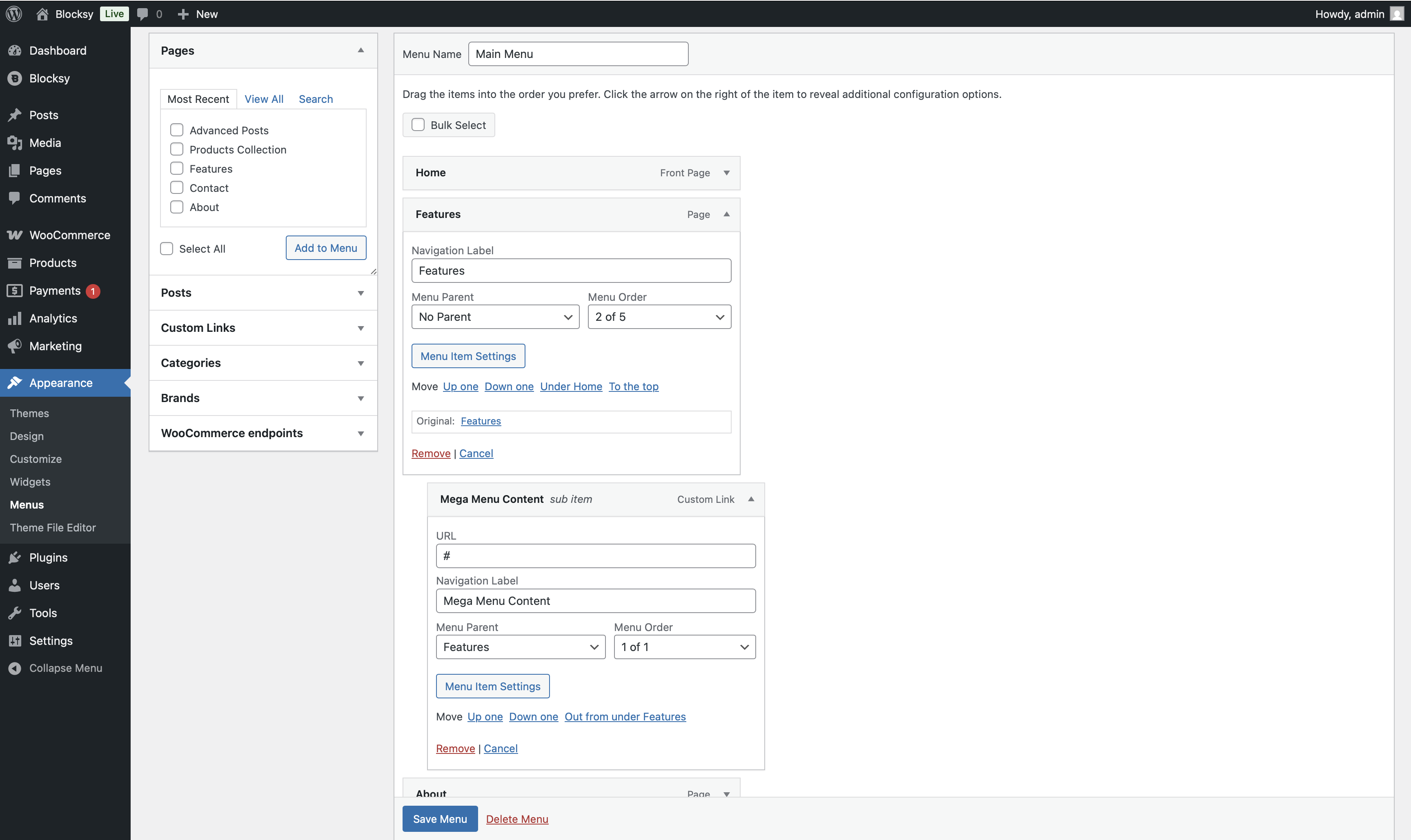
To do this, go to Appearance → Menus from your WordPress dashboard and create a new menu or open an existing one. Add your main navigation items, then arrange related pages underneath the appropriate parent items.
For example, a store might have Shop as a top-level item, with product categories underneath it.
Step #2: Enable the Mega Menu
Once your menu structure is ready, make sure the Advanced Menu extension is active.
Go to Blocksy → Extensions, find Advanced Menu, and toggle it on. After activation, additional Menu Item Settings will appear for individual menu items in the WordPress menu editor.
Select the top-level menu item you want to turn into a mega menu and open its settings. Enable Mega Menu Settings to access the additional layout options.
Step #3: Organize the Menu into Columns
The Columns setting lets you divide the dropdown into multiple columns and control how the content is arranged within them.
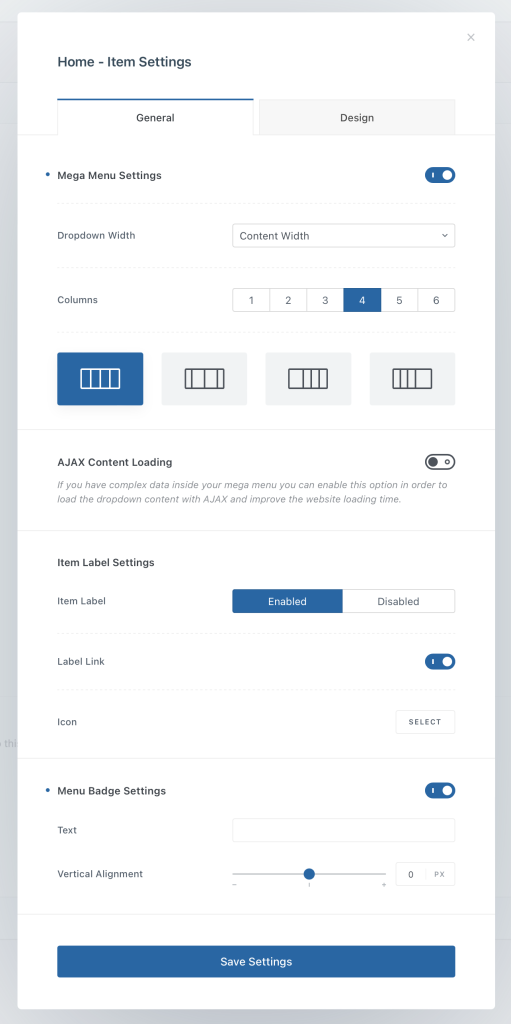
Use each column to group related links. For example, a clothing store could organize its Shop menu into columns for Men, Women, Kids, and Accessories.
You can also use child menu items as headings to make each group easier to understand. Blocksy lets you turn a child menu item into a heading or use an icon instead of its label when appropriate.
Step #4: Adjust the Dropdown Width
Next, use the Drop Down Width setting to control how much horizontal space the mega menu occupies. Blocksy allows you to create a more compact dropdown or expand it to make better use of the available screen width.
Choose a width that gives your columns enough room without making the menu unnecessarily large. Preview the menu on your site to make sure links remain easy to scan and the dropdown fits comfortably within the layout.
Step #5: Add Richer Content with Content Blocks
A mega menu doesn’t have to contain links alone. Blocksy’s Advanced Menu extension lets you use Content Blocks to create richer menu content with the Gutenberg editor.
Open the settings for the relevant child menu item and change its Content Type from a standard link to a Content Block. You can then design the content using the Gutenberg editor.
This can be useful for adding visual layouts, promotional content, featured categories, images, or other elements that help visitors navigate your site. Keep the content purposeful, though. The goal is to help users find their way around the site, not turn the navigation into another page.
Step #6: Use AJAX Loading for Heavy Mega Menus
If your mega menu contains heavy or complex elements, such as Content Blocks, loading everything with the initial page can add unnecessary weight.
Blocksy’s AJAX Content Loading option allows this content to load only when the visitor interacts with the menu. This can reduce the initial page size and help improve loading performance.
Enable the option from the Mega Menu Settings for the relevant top-level menu item when you’re using heavier dropdown content.
This approach is particularly useful when a mega menu contains more than simple text links. Loading complex content only when it’s needed can help keep the initial page load lean. For more on reducing unnecessary work during page interaction, see our guide to Interaction to Next Paint in WordPress.
Once you’ve configured the menu, preview it on both desktop and mobile to make sure the navigation remains easy to use at different screen sizes.
Mega Menu Examples for Different Websites
The best way to understand how a mega menu can work is to look at how different types of websites use them. The layout and content should reflect what visitors are most likely to look for.
Ecommerce Store
An ecommerce store selling books can build a mega menu to better showcase the different categories of books they sell. The Categories secondary menu lists 10 different book genres. Each menu item has an icon and the number of books the store stocks for each category.
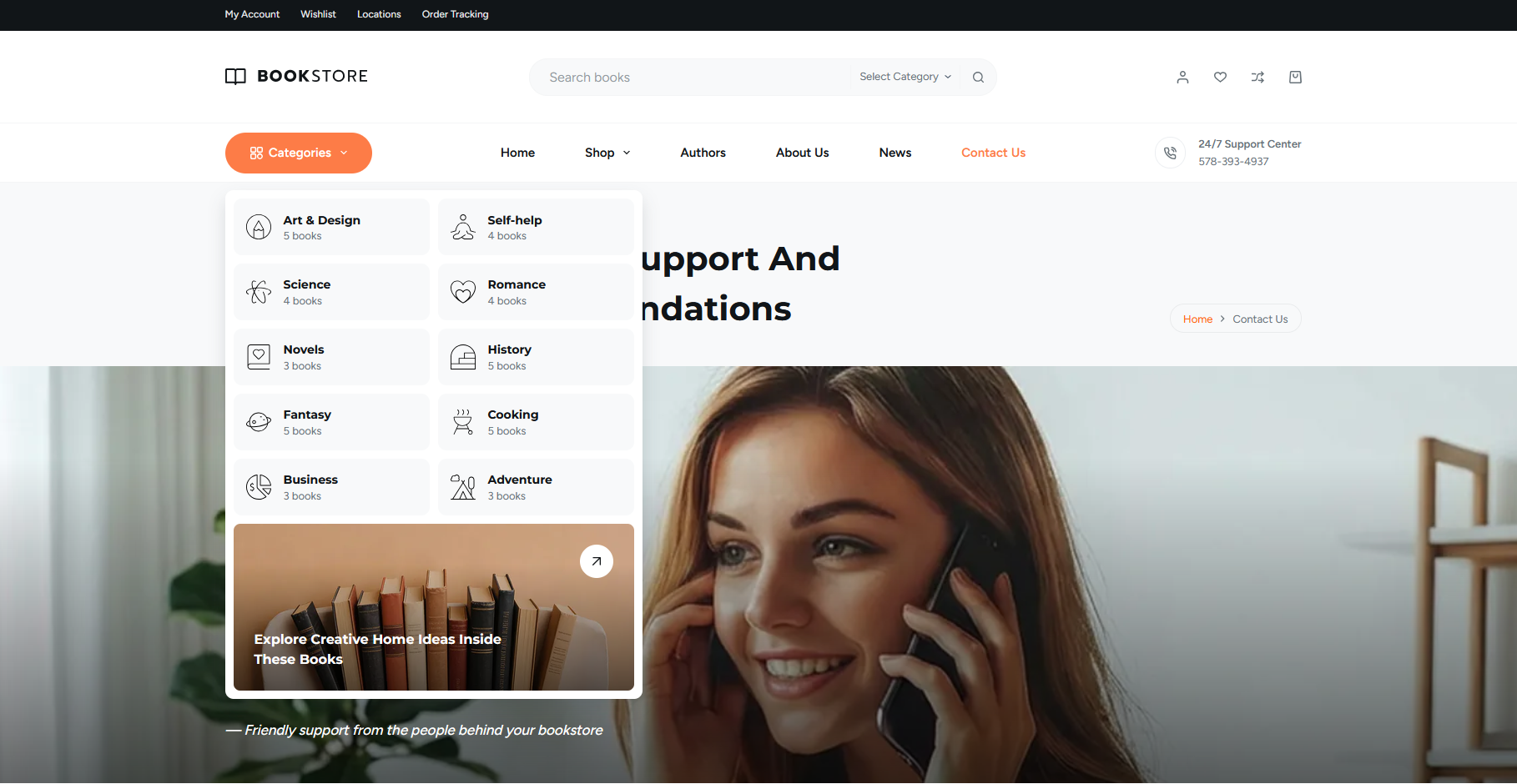
It also takes advantage of the Content Block feature to add an additional menu item for Explore Creative Home Ideas Inside These Books, which takes the user to a landing page.
Content Website
A news site can create a mega menu to feature Breaking News or their top stories in a slide-out-style mega menu. With Blocksy, you can create a mega menu that shows the latest stories along with featured images, titles, and publication dates.
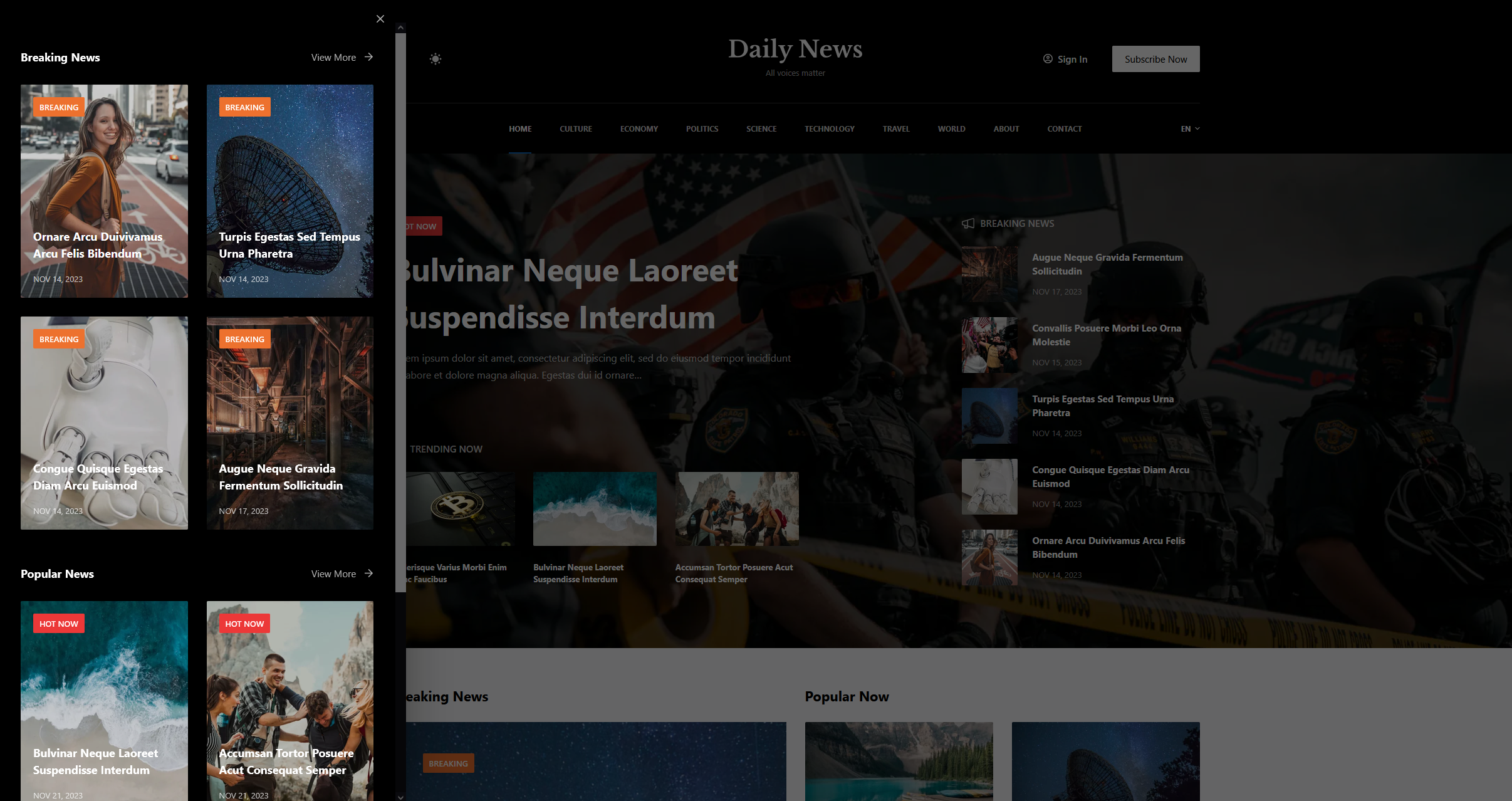
In addition to this, you can create multiple sections to show even more content in the mega menu. For example, you might consider adding a Popular News section to the mega menu to make it easier for readers to quickly read the week’s best stories.
Business Website
A web design agency can use a mega menu to list its broad range of services. This makes it easy for site visitors to see all the services the agency offers at a glance, instead of wading through nested menus.
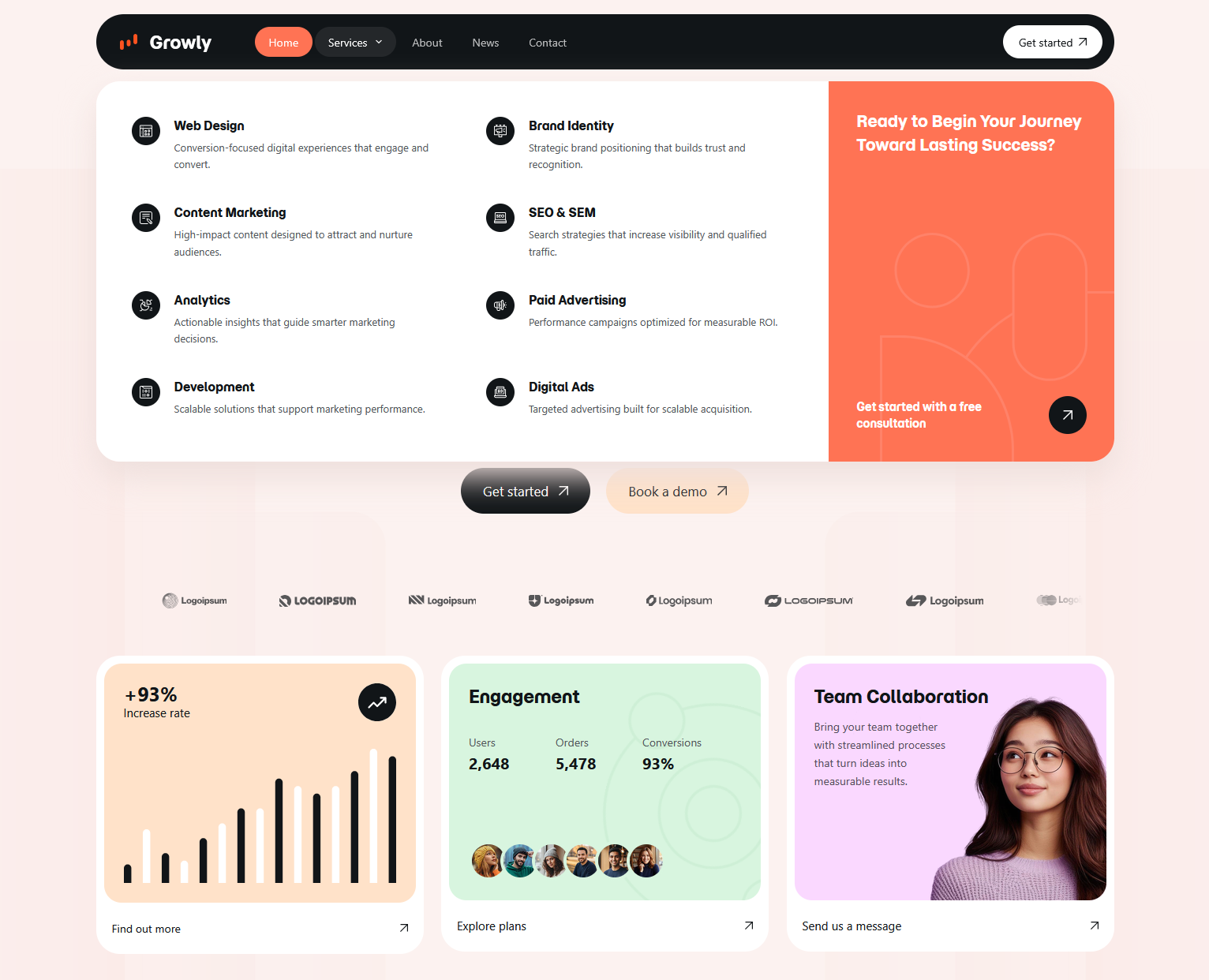
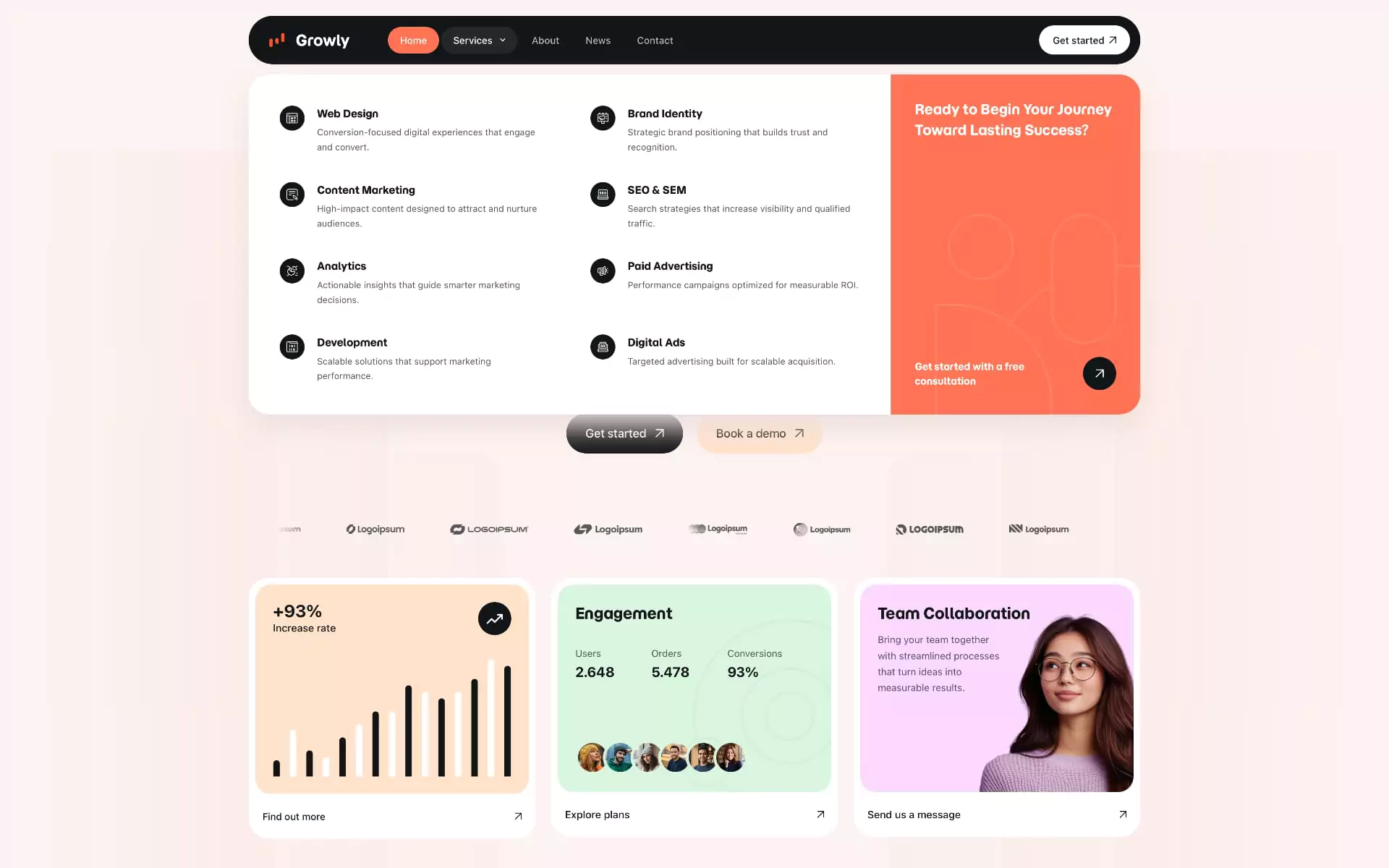
In the screenshot above, you can see how each menu item has an icon, title, and one-line description for each service the agency offers. In addition, they’ve used one-third of the mega menu as a CTA to encourage visitors to book a free consultation.
Conclusion
A well-designed WordPress mega menu can make complex websites easier to navigate by organizing pages, products, and resources into clear groups and columns. Before building one, consider your site’s structure, prioritize the links visitors actually need, and make sure the menu remains usable across desktop and mobile devices.
With Blocksy’s Advanced Menu functionality, you can create a flexible mega menu without custom code, adjust dropdown widths, organize content into columns, and add richer content with Content Blocks. AJAX loading also gives you an option for handling heavier menu content without unnecessarily loading everything upfront.
If your WordPress site has outgrown a standard dropdown, try Blocksy and build a navigation system that makes your content easier to explore.
Also, be sure to check out these Essential On-Site eCommerce Features for Success.