


As your WooCommerce store grows, helping customers quickly find the right products becomes just as important as adding new ones.
Without an effective product filter for WooCommerce, shoppers can easily become overwhelmed by large product catalogs leading to frustration, abandoned browsing sessions, and missed sales opportunities.
A well-designed product filtering system helps customers narrow products by price, category, attributes, availability, and more, making product discovery faster and more intuitive. The result is a better shopping experience that keeps visitors engaged, encourages them to explore more products, and increases the likelihood of conversion.
In this guide, you’ll learn why WooCommerce product filtering matters, the limitations of traditional sidebar filters, and how slide-in filters provide a cleaner, more user-friendly way to help shoppers find exactly what they’re looking for.
The Problem With Traditional Sidebar Filters
Sidebar filters have long been the standard way to filter WooCommerce products, but they’re not always the best fit for modern eCommerce stores. As catalogs grow and more filters are added, traditional sidebars can create usability issues that affect both the shopping experience and conversions.
To name a few:
- Consumes valuable screen space: Sidebar filters reduce the space available for your product grid, making it harder to showcase more products at once.
- Creates visual clutter: Long lists of categories, attributes, and price options can make archive pages feel crowded and overwhelming.
- Poor mobile experience: Sidebars often collapse into hidden menus or move below the product listings, making filters less visible and inconvenient to use.
- Can distract from products: A large filtering panel competes for attention, drawing shoppers’ focus away from the products themselves.
Fortunately, there’s a better approach. Slide-in and off-canvas filters provide the same powerful WooCommerce product filtering functionality while keeping product pages clean, spacious, and easier to browse.
What Is a Slide-In Product Filter?
A slide-in product filter, also known as an off-canvas filter or filter drawer, keeps your filters hidden until shoppers need them. Instead of displaying a permanent sidebar with filter options, visitors click a Filter button to open a panel that slides in from the side, allowing them to refine products without cluttering the page.
Many modern WooCommerce stores have adopted this approach because it creates a cleaner browsing experience while still giving customers quick access to powerful filtering options.
Slide-in filters work well because they:
- Save screen space: More room is dedicated to your products instead of a permanent sidebar.
- Improve mobile usability: The same filtering experience works naturally across desktop, tablet, and mobile devices.
- Keep products front and center: Shoppers stay focused on the product grid until they’re ready to filter.
- Make filters easy to discover: A clearly labeled filter button keeps advanced filtering just one click away.
Traditional sidebar filters can still make sense for small catalogs or stores where filtering is the primary browsing method. However, slide-in filters are often the better choice for fashion, electronics, furniture, and other mobile-first eCommerce stores.
Next, let’s look at the best practices for building an effective WooCommerce product filtering experience.
Best Practices for WooCommerce Product Filtering
Adding a product filter for WooCommerce is only the first step. To create a smooth shopping experience, your eCommerce filters should help customers narrow down products quickly.
The first step is to choose the right type of filters. Start with the filters shoppers expect to use most often:
- Price: Let customers browse within their budget.
- Category: Help shoppers jump directly to the product type they’re looking for.
- Attributes: Filter by options like size, color, material, or other product characteristics.
- Brands: Allow brand-conscious shoppers to find their preferred manufacturers.
- Availability: Make it easy to hide out-of-stock products or display only items that are ready to purchase.
Once that’s done, follow these best practices:
#1: Prioritize High-Value Filters
Display the filters your customers are most likely to use first, such as price, category, and key product attributes. Less frequently used filters can be placed lower in the list or grouped under expandable sections.
Prioritizing high-value filters reduces decision fatigue and helps shoppers refine their search faster. A shorter, more focused filter panel is also easier to scan, especially on mobile devices where screen space is limited.
#2: Use AJAX Filtering
AJAX filtering updates the product grid instantly without requiring a full page reload. Instead of waiting for a new page to load after every selection, shoppers see results appear immediately.
This creates a smoother browsing experience, encourages customers to experiment with different filter combinations, and reduces interruptions during product discovery.
#3: Keep Filters Accessible
Make your filter button clearly visible near the top of the product grid and label it with simple, easy to understand text like “Filter“. Avoid hiding filters deep within menus or relying solely on icons that some users may not recognize.
On larger screens, ensure the filter trigger remains easy to locate, while on mobile, place it within easy thumb reach. The goal is to make filtering feel like a natural part of the shopping experience.
#4: Make Active Filters Visible
Customers should always know which filters are currently applied. Display active filters as removable chips or tags above the product grid, allowing shoppers to clear individual filters with a single click.
This provides valuable context, especially when multiple filters are active, and prevents confusion about why certain products are no longer appearing. Visible filter states also encourage shoppers to continue refining their search instead of starting over.
#5: Optimize for Mobile
Many eCommerce shoppers browse and buy on their phones, making mobile optimization essential. Slide-in filter panels work particularly well because they keep the product grid visible while providing a dedicated space for filtering when needed.
Ensure buttons are easy to tap, filter groups are well organized, and the panel opens and closes smoothly. The fewer obstacles mobile shoppers encounter, the easier it becomes for them to find products and complete a purchase.
#6: Reduce Unnecessary Options
More filters don’t always create a better shopping experience. Offering dozens of rarely used options can overwhelm visitors and make filtering slower instead of easier.
Focus on the filters that genuinely help customers narrow down products, and remove options that add little value. You can also group related filters into collapsible sections to keep the interface clean.
By following these best practices, you can create a WooCommerce product filtering experience that’s clean, intuitive, and conversion-focused. Next, we’ll look at how to build this modern slide-in filtering experience using Blocksy’s Filters Canvas module.
How to Build a Clean WooCommerce Filtering Experience with Blocksy
Blocksy’s Filters Canvas module makes it easy to replace traditional sidebar filters with a modern slide-in panel or a horizontal filter bar.
Here’s how to set it up:
Step 1: Activate the Filters Canvas Module
From your WordPress dashboard, go to Blocksy → Extensions and expand the Shop Extra extension. Locate Filters and enable the toggle.
Once activated, you’ll find a new Filters Canvas panel under Customizer → Product Archives. You’ll also see a new WooCommerce Filters Canvas widget area under Appearance → Widgets, where you can add your product filter widgets.
Step 2: Choose Your Filter Layout
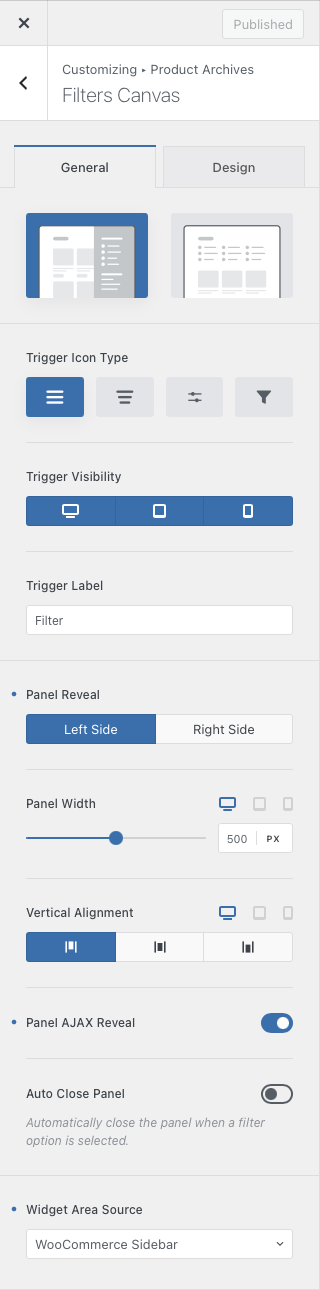
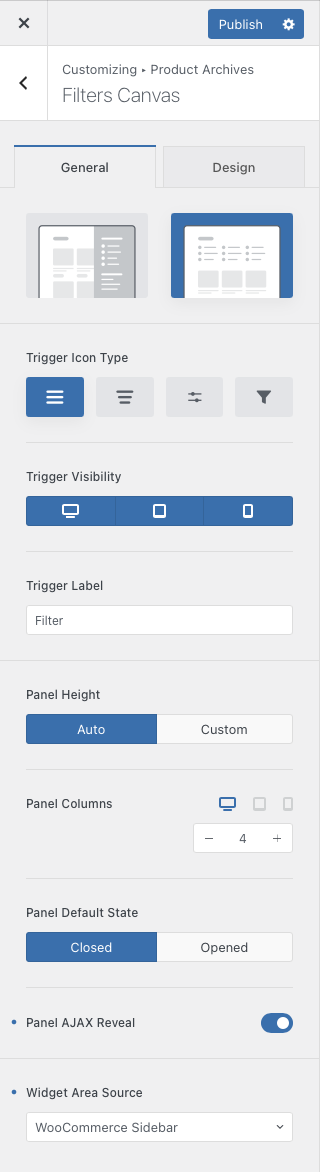
Open Customizer → Product Archives → Filters Canvas and select the layout that best suits your store. You can choose to:
- Design 1: Display filters inside a slide-in off-canvas panel that opens from the left or right side of the screen.
- Design 2: Display filters in a horizontal panel above the product grid.
For most stores, the off-canvas layout offers the cleanest shopping experience by keeping filters hidden until customers need them.
Step 3: Configure the Filter Trigger and Visibility
Next, customize how shoppers access your filters. You can choose the filter icon, control whether the trigger appears on desktop, tablet, or mobile. And for the off-canvas layout, select which side of the screen the panel slides in from.
You can also adjust the panel width and choose how the filter widgets are aligned inside the panel. These settings help ensure the filter experience feels natural across different devices.
Step 4: Optimize the Filtering Experience
Blocksy includes several options that make WooCommerce product filtering feel faster and more intuitive.
Enable Panel AJAX Reveal to load the filter widgets only when shoppers open the panel, helping improve performance. If you’ve enabled AJAX filtering for your product archives, you can also turn on Auto Close Panel, which automatically closes the filter drawer after a customer selects a filter.
This keeps shoppers focused on the updated product results instead of requiring them to manually close the panel.
Step 5: Configure the Widget Area Source
Finally, choose which widget area should appear inside the Filters Canvas. This is especially useful if you want to reuse the same filter widgets across desktop and mobile layouts instead of managing multiple sets of filters.
Once you’ve added your preferred filter widgets (such as price, category, attributes, brands, and availability) your WooCommerce store will have a clean, responsive product filtering experience that helps shoppers quickly find the products they’re looking for.
Conclusion
An effective product filter for WooCommerce helps shoppers find the right products faster, creating a smoother browsing experience that can increase engagement and conversions.
By replacing traditional sidebar filters with a modern slide-in or off-canvas layout, you can keep your product archives clean without sacrificing powerful filtering functionality.
If you’re looking for an easy way to build this experience, Blocksy’s Filters Canvas module gives you everything you need, from flexible layouts and AJAX loading to responsive controls and shared widget areas.
Try it with your WooCommerce store and create a faster, cleaner shopping experience for your customers.