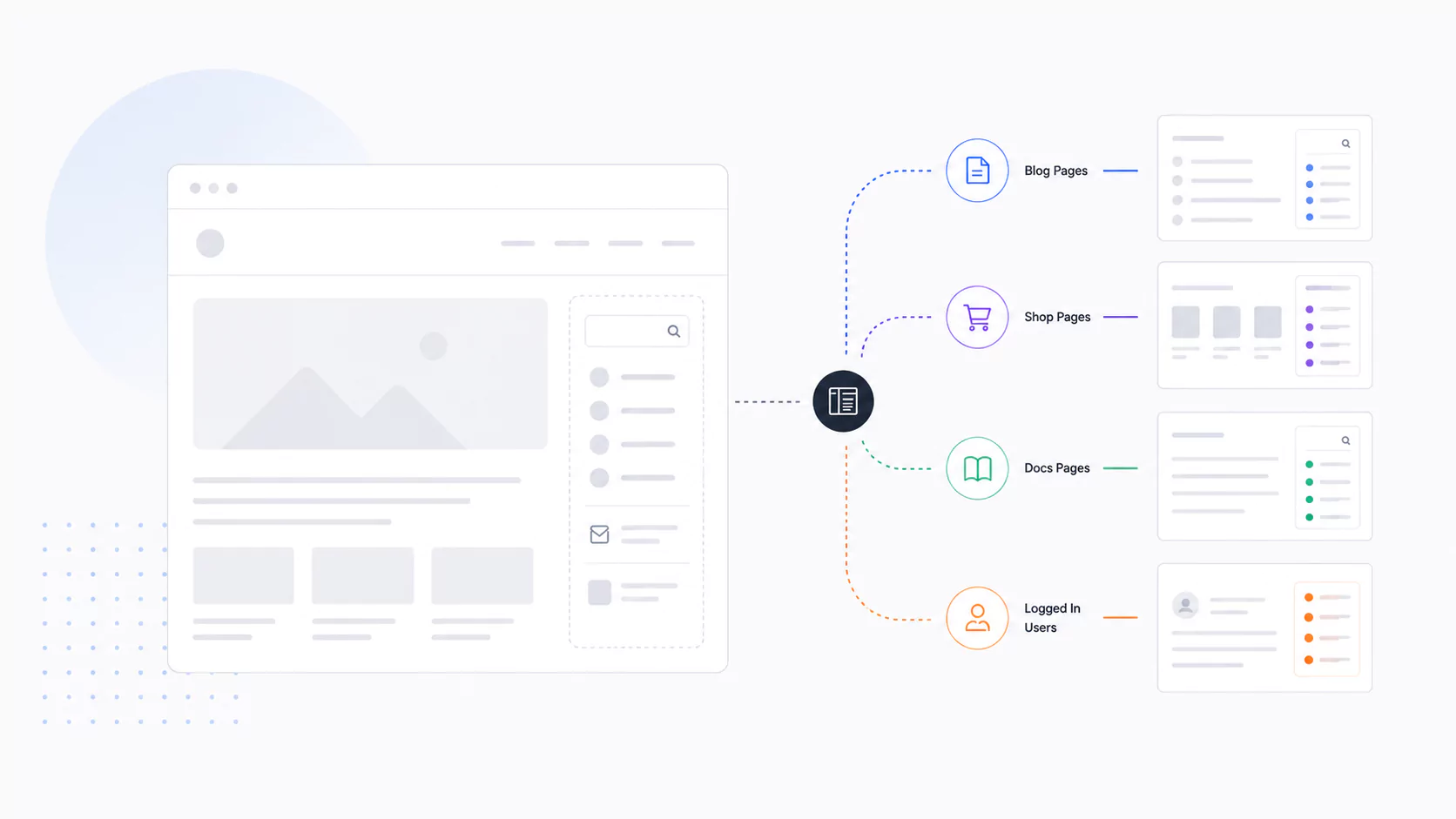
WooCommerce category pages help shoppers browse related products without having to search through an entire catalog. However, many stores rely on basic product grids with little context or guidance, making it harder for visitors to find what they need and leaving valuable SEO opportunities untapped.
A well-optimized category page balances search visibility with a smooth shopping experience. Clear descriptions, organized product displays, useful filters, and intuitive navigation help search engines understand your pages while making product discovery easier for shoppers.
With Blocksy, you can customize WooCommerce archive layouts, product cards, and filtering options to create a more useful shopping experience.
In this guide, we’ll look at how to optimize category page content for WooCommerce SEO, improve product discovery and navigation, and customize your WooCommerce category pages with Blocksy.
In This Guide
- What Are WooCommerce Category Pages?
- How to Optimize WooCommerce Category Pages for SEO
- How to Improve Product Discovery on Category Pages
- How to Improve WooCommerce Category Page Navigation
- How to Customize WooCommerce Category Pages with Blocksy
- WooCommerce Category Page Best Practices
- Conclusion
What Are WooCommerce Category Pages?
WooCommerce category pages are archive pages that display products grouped under a shared category. They help store owners organize their catalogs into logical sections, making it easier for shoppers to browse products based on their type, purpose, or other shared characteristics.
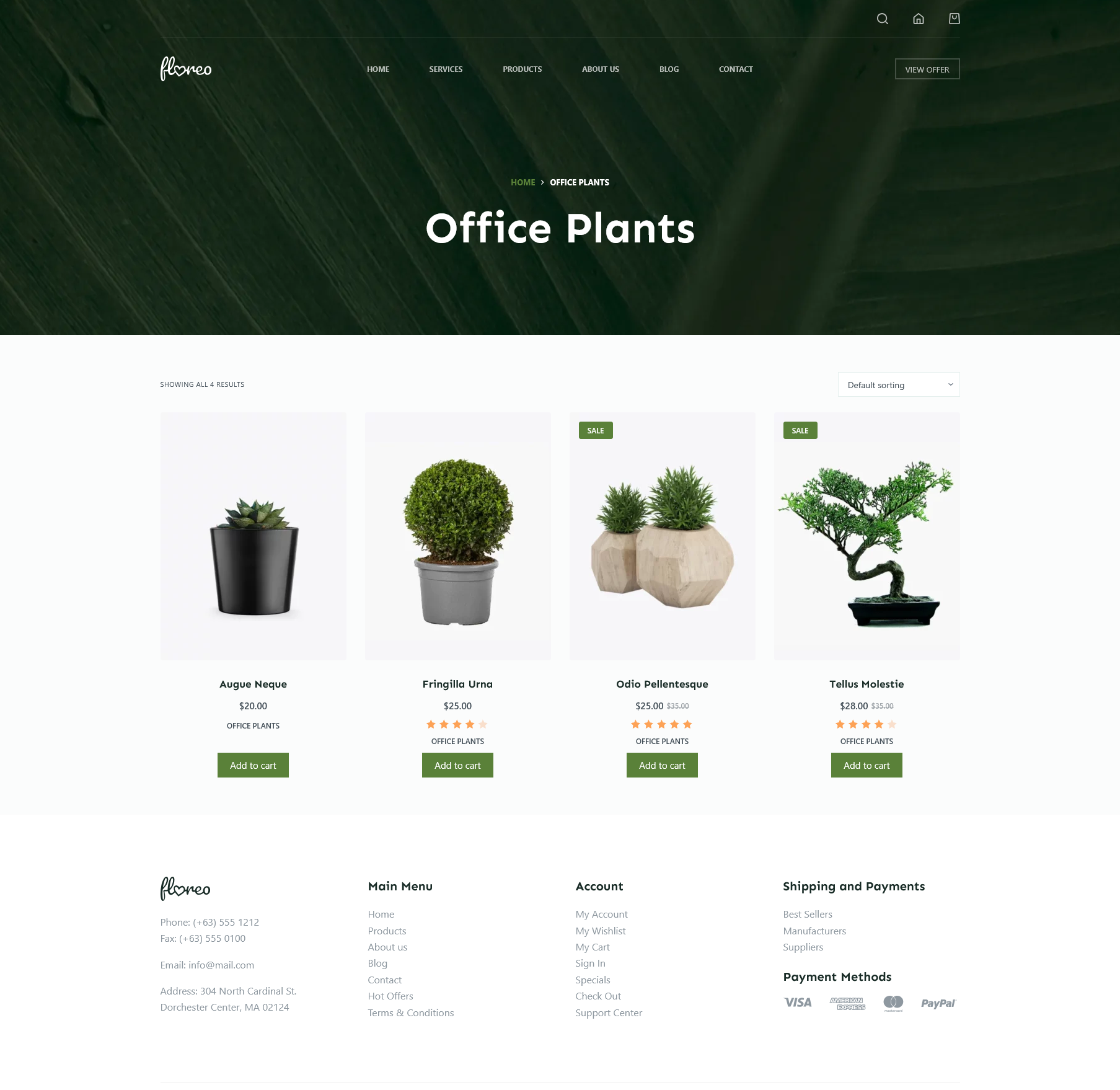
For example, an online clothing store might have separate categories for shirts, trousers, shoes, and accessories.
Category pages serve a different purpose from individual product pages. While a product page focuses on one item, with its descriptions, images, pricing, and purchase options, a category page displays a collection of related products. This gives shoppers an overview of available options and helps them decide which products to explore further.
Category pages also play an important role in SEO and conversions. They can target broader product-category search queries, help search engines understand your store’s product hierarchy, and guide visitors toward relevant products.
By connecting related products and categories through clear navigation, they also create useful landing pages for shoppers who know what they need but haven’t chosen a specific product yet.
How to Optimize WooCommerce Category Pages for SEO
Optimizing WooCommerce category pages for SEO involves more than adding keywords to a heading or description. Each page should clearly communicate what products it contains, help search engines understand its purpose, and give shoppers enough information to explore the catalog.
Here are four areas to focus on:
#1: Write Useful Category Descriptions
WooCommerce lets you add descriptions to individual product categories. Go to Products → Categories, select a category, and enter its description in the description field. Explain what the category includes, who the products are for, and which attributes or use cases shoppers should consider.
For example, a category for running shoes could mention road and trail running, cushioning, grip, and different running needs. Incorporate relevant keywords naturally, but avoid repeating them just to improve keyword density.
Keep the description concise, too. Depending on your theme’s archive layout, category descriptions may appear above the product grid and long introductions can push products too far down the page.
#2: Use Clear, SEO-Friendly Headings
WooCommerce product category archives typically use the category name as the page heading (H1), depending on your theme’s template. Choose category names that clearly describe the products, such as Women’s Running Shoes rather than a vague label like Footwear.
If you add supporting content to the archive, use logical H2 and H3 headings to organize it. You can include related search terms where they fit naturally, but make sure headings help shoppers understand the category and find relevant information.
#3: Optimize Category URLs and Metadata
When creating or editing a product category under Products → Categories, use the slug field to set a short, descriptive URL like womens-running-shoes.
WooCommerce doesn’t provide dedicated fields for SEO title tags and meta descriptions by default. You can manage these through an SEO plugin, such as Yoast SEO or Rank Math. Write unique metadata for important categories, reflecting their products and search intent.
Avoid changing established category slugs unnecessarily. If a change is needed, configure a redirect from the old URL. Also, make sure closely related categories serve distinct purposes rather than targeting the same search intent.
#4: Add Relevant Internal Links
Use category descriptions and supporting archive content to link to relevant subcategories, related product categories, and buying guides. For example, a Running Shoes category could link to Road Running Shoes and Trail Running Shoes, as well as a guide to choosing running shoes.
When adding links to a category description, use the WordPress editor to select relevant text and insert the destination URL. Choose descriptive anchor text so shoppers and search engines understand where each link leads. Avoid unrelated links that don’t help visitors discover products or useful information.
How to Improve Product Discovery on Category Pages
A well-organized category page helps shoppers find relevant products without having to browse every item in your store. WooCommerce provides basic sorting and pagination options, while product filters and search can make larger catalogs easier to navigate.
Here are five ways to improve product discovery:
#1: Organize Products into a Clear Grid
Your product grid should make it easy to scan and compare items. Choose a suitable number of columns based on the product type, image dimensions, and available screen space. Each product card should display the essential information, including the product image, title, price, rating (if available), and purchase action.
Keep product card layouts consistent across categories so shoppers know where to find key details. Also, check how the grid adapts to smaller screens. A layout with four columns on desktop may need to display two columns or a single column on mobile.
#2: Add Useful Sorting Options
WooCommerce includes a default sorting dropdown that lets shoppers order products by popularity, average rating, latest arrivals, and price (low to high or high to low). You can also use the default menu’s relevance option where supported by your setup.
Choose a useful default order for each category. For example, a category focused on new arrivals may benefit from sorting by recency, while a category with many established products might prioritize relevance. Don’t assume popularity or price is always the best starting point.
#3: Add Product Filters
Filters help shoppers narrow large product collections using attributes such as size, color, price, brand, or product type. In WooCommerce, you can create global product attributes under Products → Attributes, add terms, and assign them to relevant products. These attributes can then power filtering options.
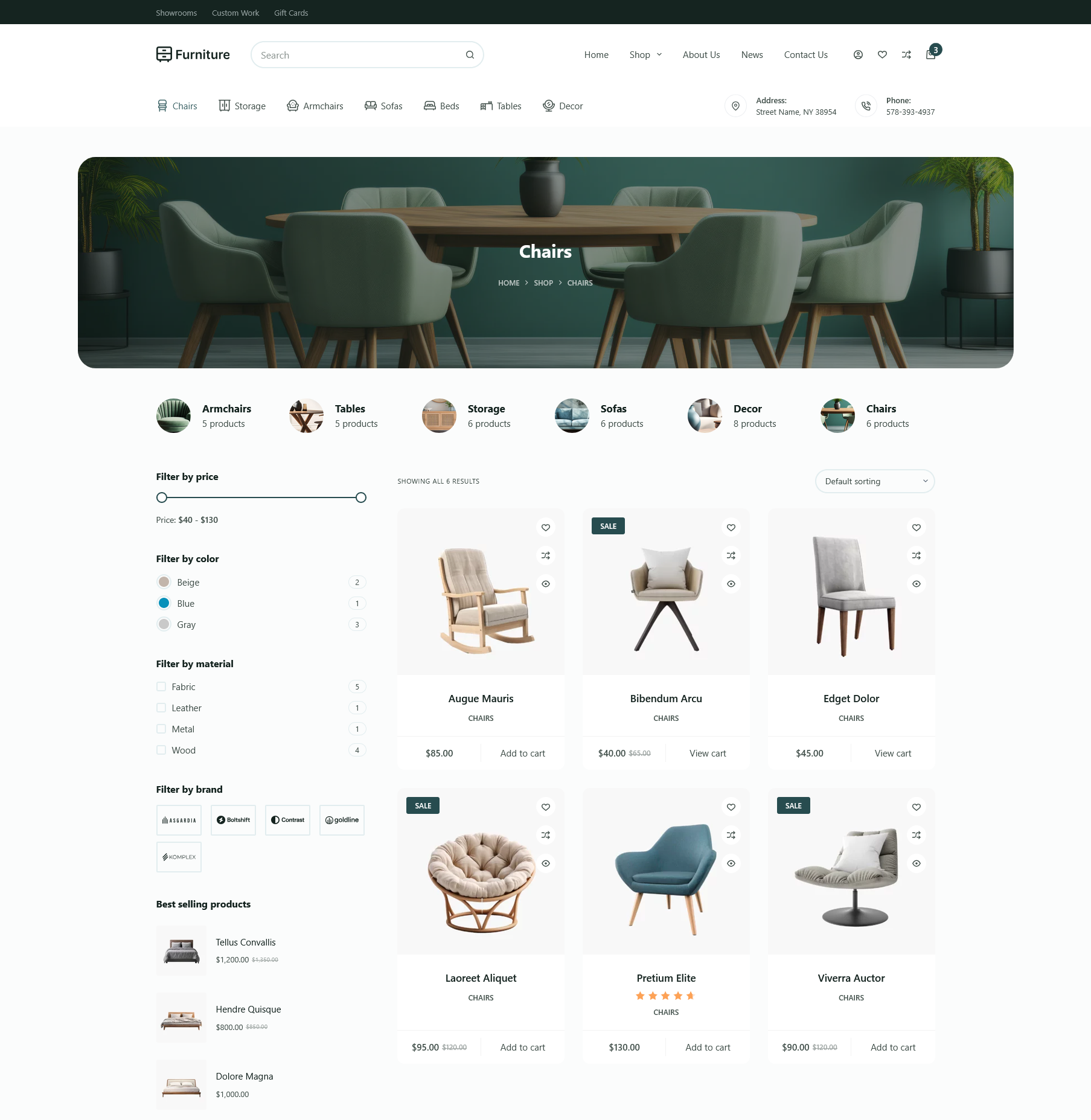
Choose filters that reflect how customers actually compare products in each category. Make them easy to find and use, especially on mobile. For more ideas, see How to Build a Clean WooCommerce Product Filtering Experience Using Slide-In Filters.
#4: Make Product Search Easy to Access
Some shoppers already know the product or feature they’re looking for. Keep your store’s search function accessible from category pages so they can move directly from browsing to searching. Ideally, search results should complement category navigation rather than replace it.
For implementation ideas, read WooCommerce Product Search Optimization: Help Customers Find Products Faster (Complete Guide).
#5: Use Pagination Carefully
Choose a reasonable number of products per page so category archives remain easy to browse without creating unnecessarily long pages. Make pagination controls visible and accessible, with clear links to the next and previous pages.
WooCommerce themes typically handle archive pagination, but check that paginated URLs work correctly and that products aren’t accessible only through an interaction that search engines or shoppers cannot easily follow.
How to Improve WooCommerce Category Page Navigation
Good category page navigation helps shoppers move between related products and find what they’re looking for without repeatedly returning to the main shop page.
Here are three ways to improve navigation on your WooCommerce category pages.
#1: Add Breadcrumbs
Breadcrumbs show shoppers where they are in your store’s category hierarchy and provide clickable links to parent categories.
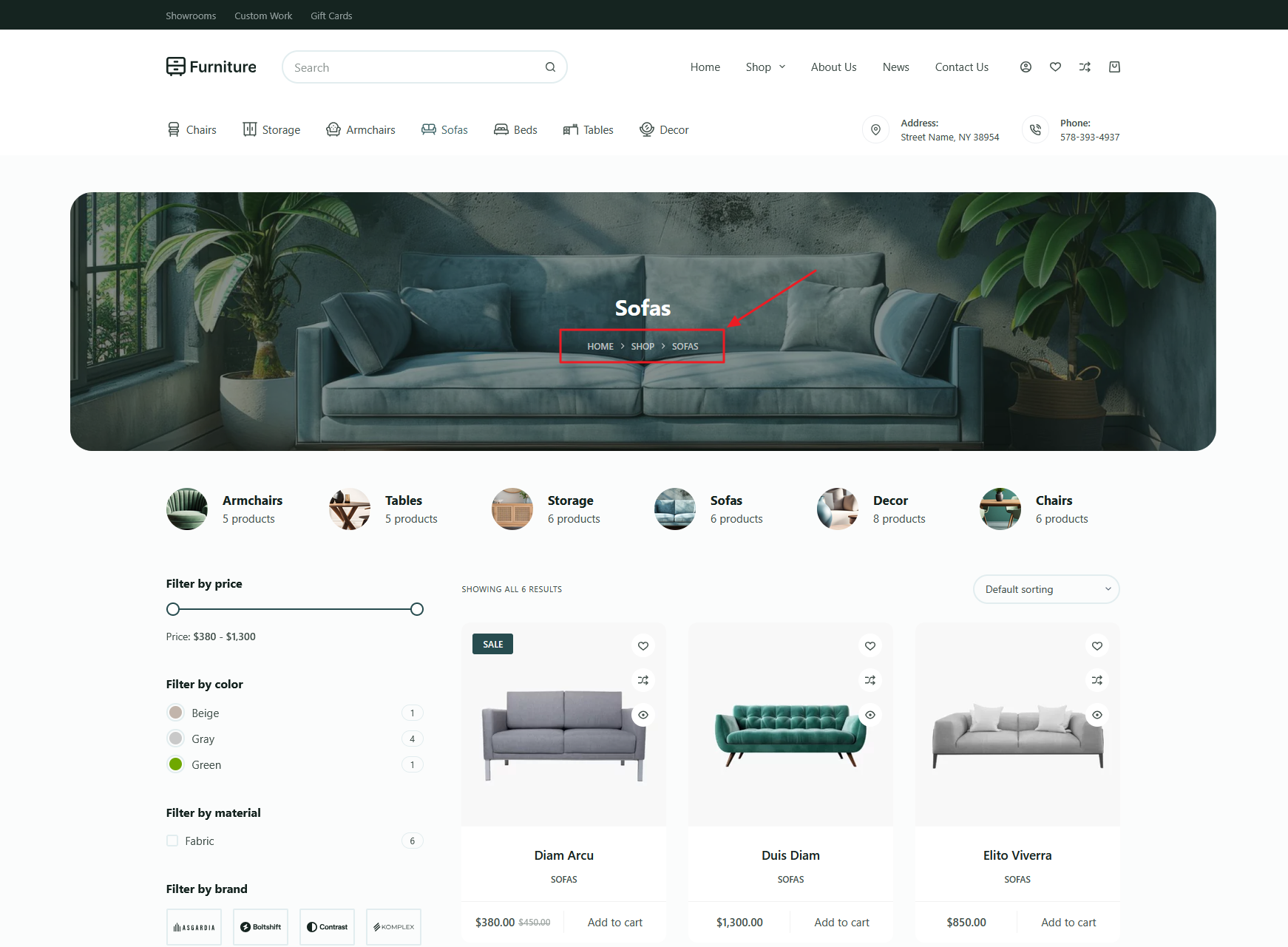
For example, a shopper viewing Trail Running Shoes could follow the breadcrumb trail back to Running Shoes or the main Shop page. This makes it easier to explore related products without starting over.
#2: Feature Important Products and Subcategories
Highlight popular products, new arrivals, or relevant subcategories to give shoppers useful starting points. For example, a Home Office Furniture category could feature sections for desks, office chairs, and storage units above or alongside the main product grid.
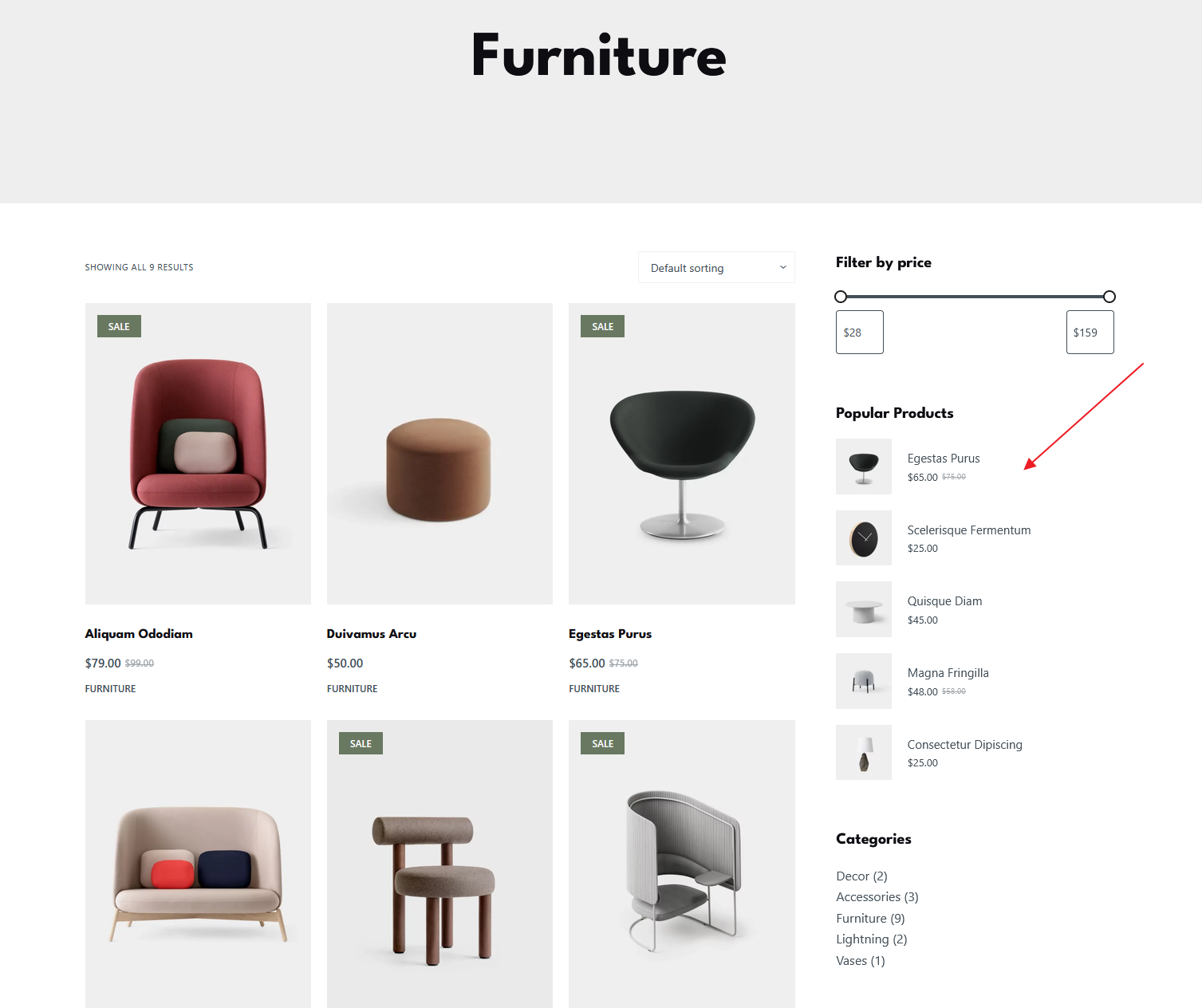
Blocksy’s archive layouts and product display options can help you present these sections clearly. For example, you can showcase subcategories like Fall Hats for Kids on the Hats & Scarves page like this:
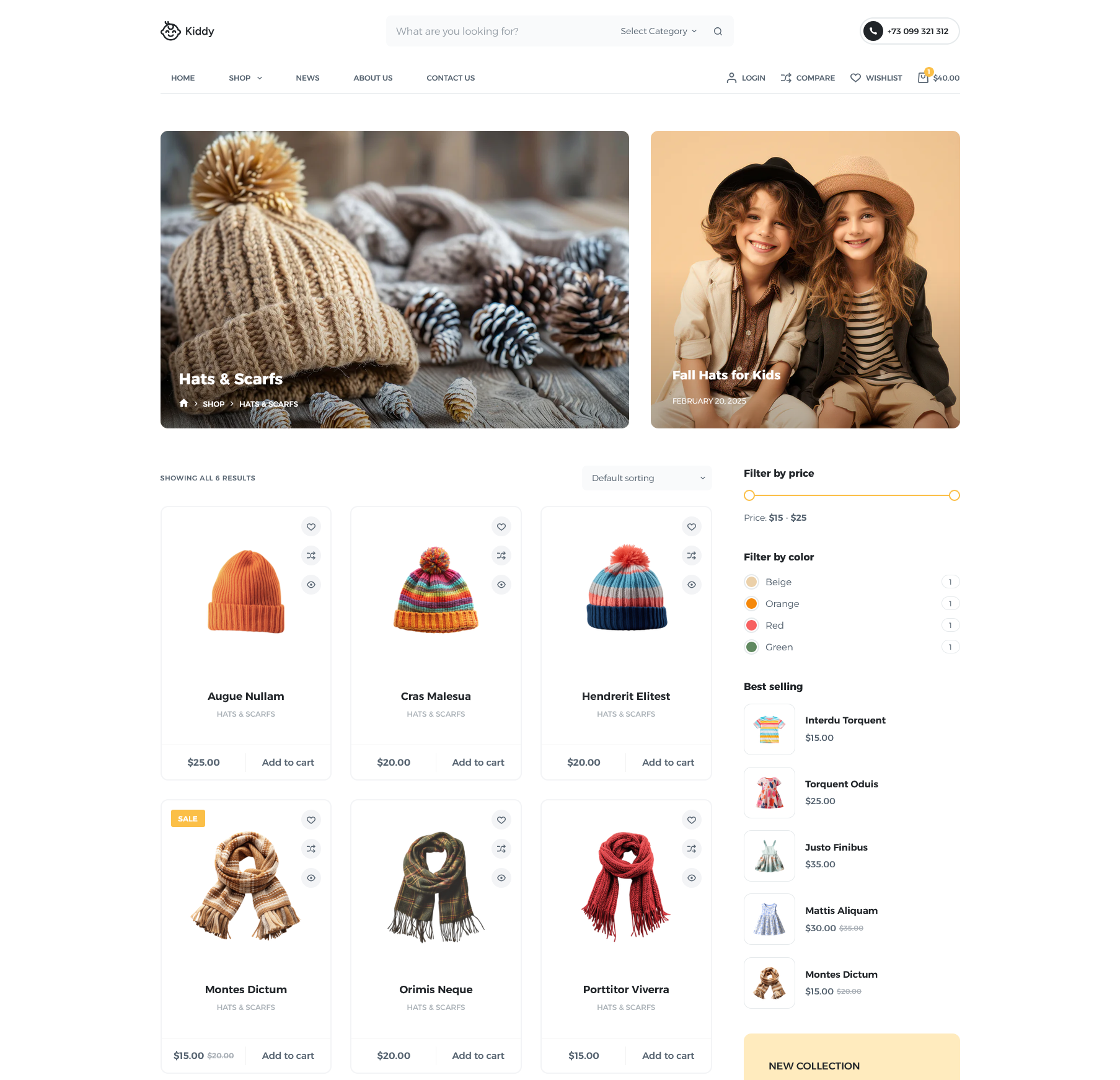
#3: Keep Navigation Consistent
Use consistent menus, category links, breadcrumbs, and product navigation across your store. Shoppers shouldn’t have to learn a different navigation structure every time they visit another category.
How to Customize WooCommerce Category Pages with Blocksy
WooCommerce category pages use product archive layouts to display collections of products. With Blocksy, you can customize these layouts to match your store’s design, organize product information, and make browsing easier.
Blocksy’s WooCommerce controls let you adjust archive layouts, product cards, filters, and other page elements. Here’s how to configure the main features.
Step #1: Customize the Product Archive Layout
From your WordPress dashboard, go to Appearance → Customize → WooCommerce → Product Archives. Here, you can adjust the page title layout, product columns, and number of rows displayed per page. You can also choose whether category archives display products directly or show categories first.
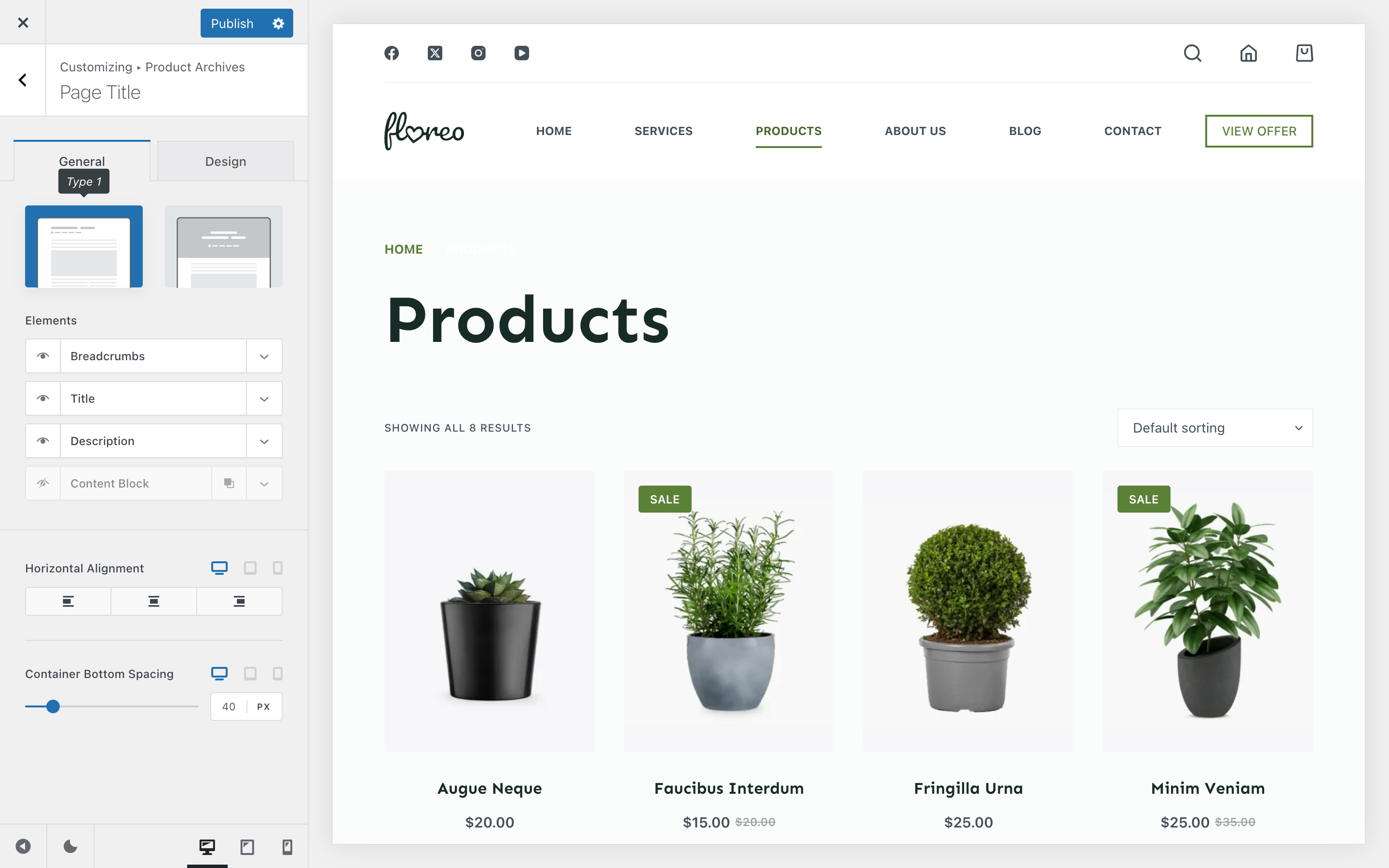
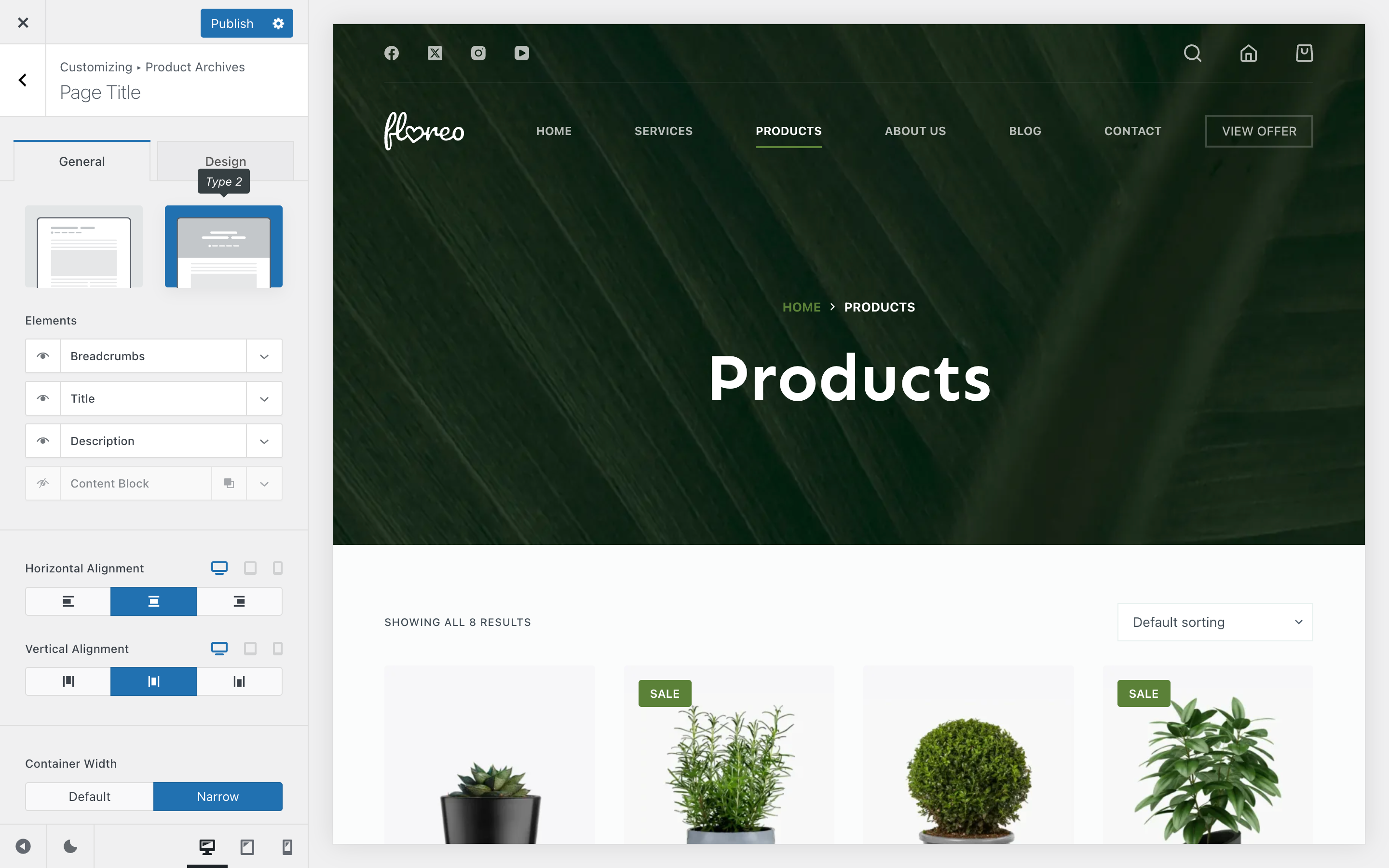
For more control over the archive design, configure the page title area, including its layout, alignment, background, and breadcrumbs.
Step #2: Improve Product Cards
In the Product Archives settings, open the card design and customization options. Blocksy offers three product card styles, with controls for arranging, showing, hiding, and styling individual elements.
You can customize product images, titles, prices, ratings, excerpts, and Add to Cart buttons. Depending on your store, you can also display product swatches, brand labels, or quick actions such as Quick View and Wishlist. Adjust the spacing and alignment to keep product cards easy to scan.
Step #3: Configure Product Filters
Blocksy Pro’s Shop Extra extension includes a Product Filters module. Activate it under Blocksy → Extensions → Shop Extra, then enable the Filters module.

You can add the Shop Filters block through the WordPress block editor and configure filters for product categories, brands, and attributes such as size, color, or material.
Choose how filter options appear, enable multiple selections where useful, and add search or reset controls when needed.
Step #4: Configure Breadcrumbs and Category Structure
Return to Product Archives and open the Page Title settings. You can add or remove breadcrumbs as part of the archive title area. Keep them visible if your store has multiple category levels, helping shoppers understand their location and navigate to parent categories.
WooCommerce Category Page Best Practices
Keep these five best practices in mind when optimizing your store’s product archives.
- Keep category content useful: Write concise descriptions that explain the products and help shoppers make informed choices. Avoid unnecessary text or keyword repetition.
- Prioritize products above the fold: Make sure shoppers can see product listings without scrolling through lengthy introductions or decorative elements.
- Optimize for mobile: Check that product grids, filters, sorting controls, and navigation work smoothly on smaller screens.
- Monitor performance: Keep an eye on page loading times, image sizes, and the impact of plugins or filtering features on your store’s performance.
- Measure results: Use Google Search Console and analytics tools to track organic clicks, impressions, engagement, and product interactions. Review the data to identify category pages that need improvement.
Conclusion
Optimizing WooCommerce category pages means bringing SEO, product discovery, and navigation together. From writing useful category descriptions and organizing product grids to configuring filters, breadcrumbs, and archive layouts, every improvement should make it easier for shoppers to find relevant products.
Blocksy gives you the flexibility to customize your WooCommerce store’s archives, product cards, and filtering experience without building everything from scratch.
Explore Blocksy to see how its WooCommerce features can help you create category pages that are easier to browse and better aligned with your store’s needs.