


Blocksy’s built-in Footer Builder provides a flexible way to create most footer layouts, but some designs may require more freedom than its predefined rows and elements can offer.
With Blocksy Pro’s Content Blocks system, you can replace the regular footer with a fully customised Footer Template built directly in the WordPress block editor. This gives you the freedom to combine Gutenberg blocks, Blocksy Theme Blocks, dynamic content and compatible third-party blocks into your own footer layout.
Thanks to the Conditional Module, you can also control exactly where the custom footer is used – whether across the entire website or only on specific pages, post types, archives or other supported conditions.
Getting Started
Creating a Footer Template is straightforward. Follow these steps:
- Open your WordPress dashboard.
- Go to Blocksy → Content Blocks.
- Click Add New.
- Select Custom Template.
- Choose the Footer Template option.
You’ll now be inside the block editor, ready to build your footer using your preferred Gutenberg blocks.
Granular Controls
After creating the Footer Template, Blocksy provides several additional controls for defining where it appears and how its outer layout behaves.
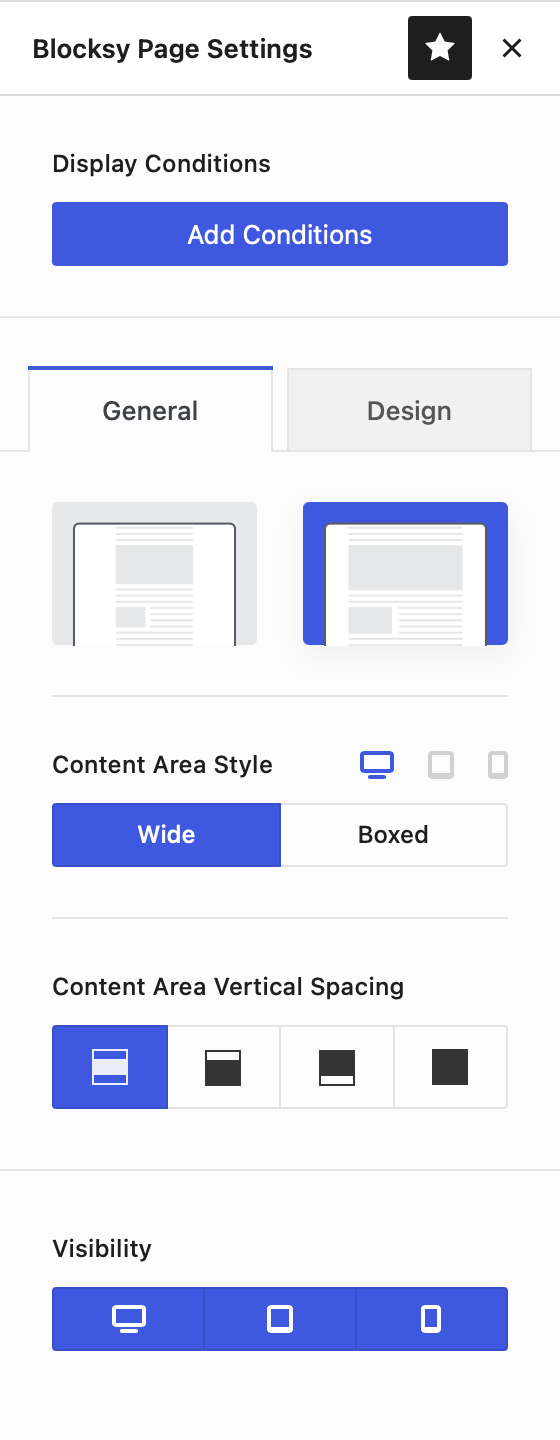
Display Conditions
The Footer Template works with Blocksy’s Conditional Module, allowing you to define exactly where the custom footer should replace the default one.
You can apply the template globally or target specific areas of the website, such as individual pages, post types, archives, taxonomies, user states and other supported conditions.
Page Structure
The layout controls determine how the Footer Template is positioned within the surrounding page structure. You can use them to create a more constrained footer or allow the template to occupy a wider area, depending on the design you are building.
The internal structure, spacing and alignment of the footer itself remain controlled by the blocks used inside the template.
Visibility
Use the device visibility controls to choose whether the Footer Template appears on desktop, tablet and mobile devices.
This makes it possible to hide the template on particular screen sizes or create separate Footer Templates with layouts designed specifically for different devices.