



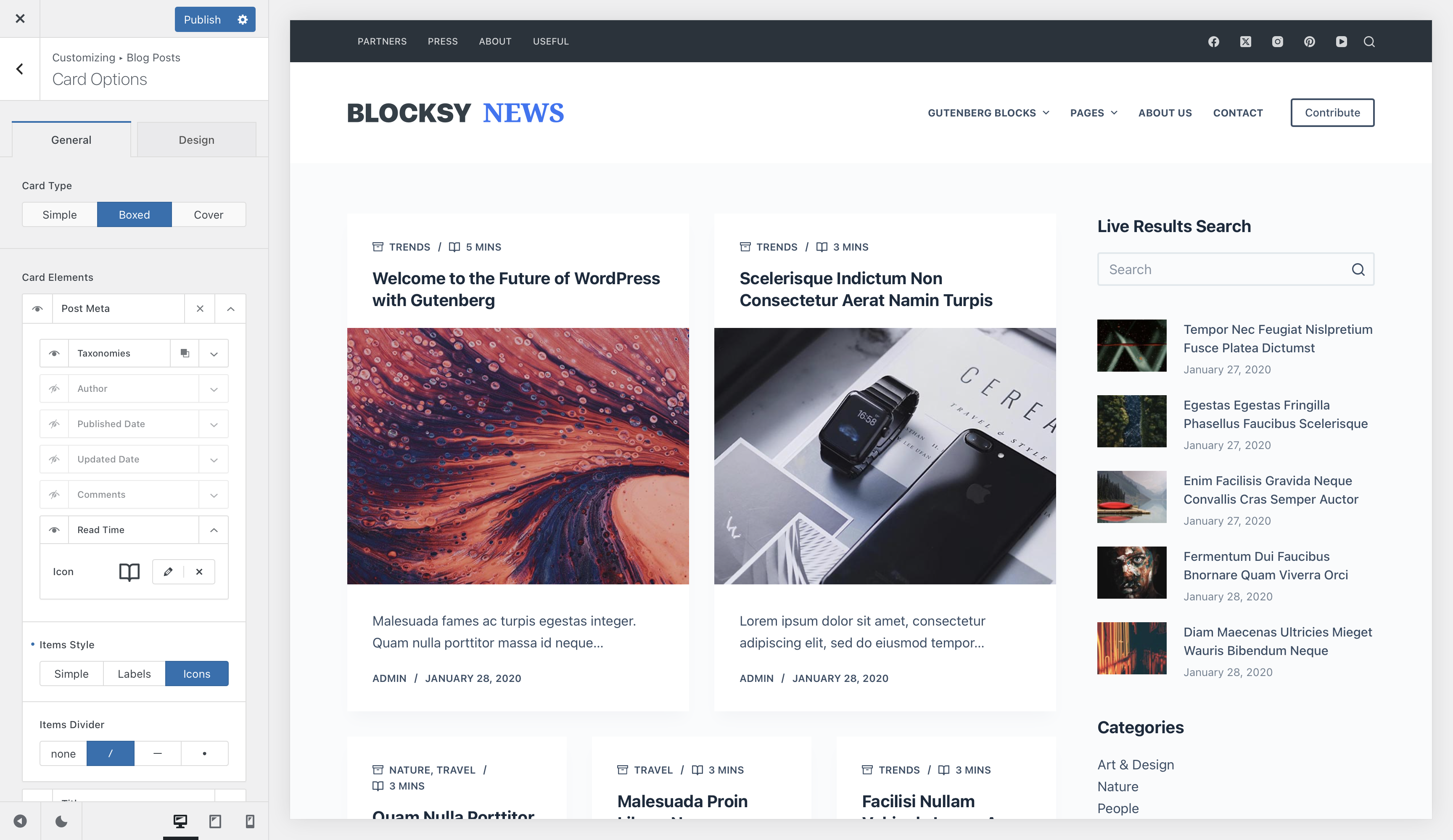
The Read Time feature adds an estimated reading duration to supported posts and Custom Post Types. It can be displayed alongside other post meta information on single entries and archive cards.
The same Post Types Extra feature also includes a Reading Progress Bar, which visually tracks how far a visitor has progressed through singular content.
Post Types Extra required
Read Time is part of the Post Types Extra extension, available with the Business and Agency Blocksy Pro plans.
Getting Started
- Navigate to WordPress Dashboard → Blocksy → Extensions.
- Locate and expand Post Types Extra.
- Enable the Read Time feature.
- Open the relevant post type inside the Blocksy Customiser and add or enable the Read Time meta information where required.
Once enabled, Blocksy calculates an estimated reading duration from the content of each supported entry and makes it available as part of the post meta system.
Displaying Read Time
Single Posts
To display Read Time on individual blog posts, navigate to Customiser → Single Posts → Post Title → Post Meta and enable the Read Time meta item.
The reading-time value is displayed alongside the other enabled meta information in the Post Title area.
Archive Cards
Read Time can also be displayed on blog archive cards. Navigate to Customiser → Blog Posts → Card Options → Post Meta and enable the Read Time item for the archive layout.
This gives visitors an indication of the expected reading duration before they open an article.
Custom Post Types
When a supported Custom Post Type exposes Blocksy’s archive and single-content options, Read Time can also be used in the corresponding post meta areas for that post type.
Reading Progress Bar
The Reading Progress Bar displays an indicator that advances as the visitor moves through the current entry. It is configured independently from the Read Time meta item, so you can use either feature on its own or enable both together.
Open Customiser → Single Posts and enable the Reading Progress element to access its configuration.
Progress Bar Height
Adjust the thickness of the progress indicator to make it more subtle or more prominent within the website interface.
Auto Hide
Enable the auto-hide option when you want the progress bar to disappear after the visitor reaches the end of the article.
Device Visibility
Control whether the Reading Progress Bar appears on desktop, tablet and mobile devices independently.
Colors
Use the Design controls to configure the Color of the progress indicator and its background so that the bar remains visible while fitting the rest of your website’s Color scheme.