



The Advanced Search block lets you place a configurable search form anywhere the WordPress block editor is available. It can search across selected post types, display matching results as visitors type and provide an optional taxonomy filter for narrowing the search before it is submitted.
This makes it useful for dedicated search pages, sidebars, shop layouts, Content Blocks and other areas where you want search functionality outside of the website header.
Blocksy Companion required
The Advanced Search block becomes available after installing and activating Blocksy Companion.
Getting Started
Open the WordPress block inserter and search for Advanced Search. After adding the block to your layout, select it to access its search, filtering and design controls from the editor sidebar.
The block can be configured for general website search or restricted to specific types of content, such as blog posts, pages, WooCommerce products or registered Custom Post Types.
Granular Controls
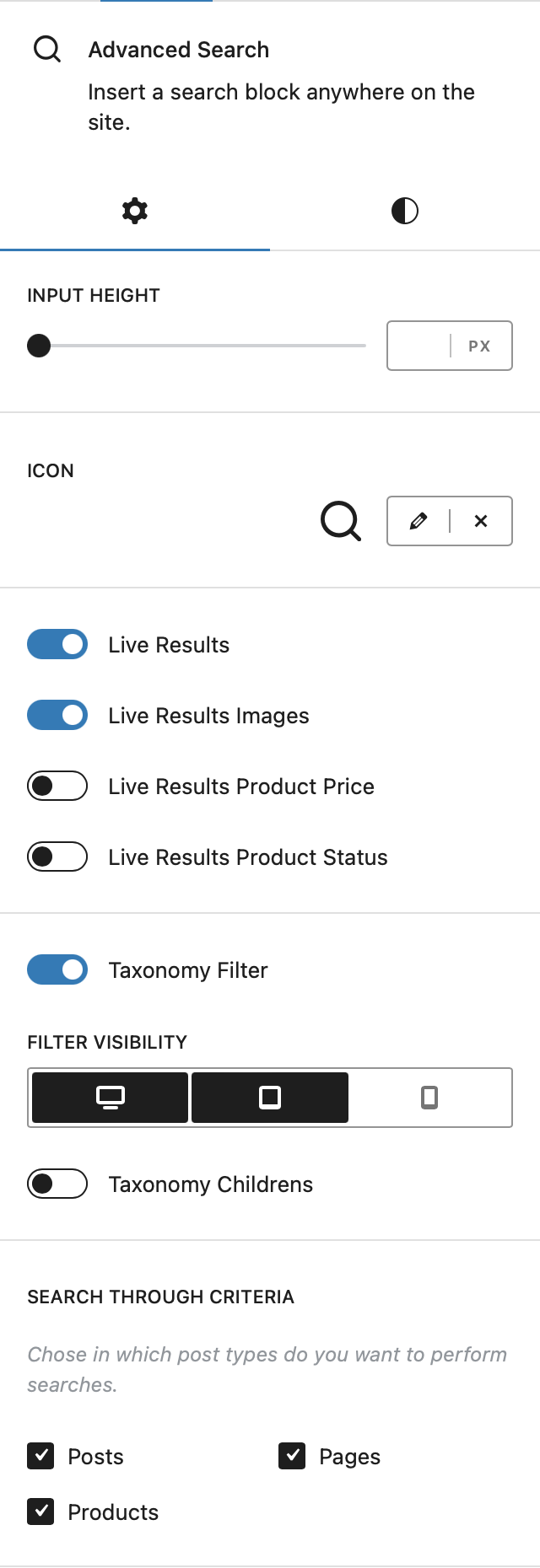
Input Controls
Adjust the height of the search field to fit the surrounding layout and other interface elements.
Search Icon
Configure the icon displayed as part of the search form. A custom icon can also be used when you want the search control to better match the rest of your website’s visual style.
Live Results
Enable Live Results to display matching content dynamically while the visitor types, allowing relevant destinations to be opened without first loading a separate search-results page.
Live Results Images
Display the featured image or product thumbnail alongside entries in the live-results panel.
Live Results Product Price
When WooCommerce products are included in the search, enable this option to display their prices directly inside the live results.
Live Results Product Status
Display relevant WooCommerce product status information inside the live results, providing additional context about a product before the visitor opens it.
Taxonomy Filter
Enable the Taxonomy Filter to add a selector alongside the search field. Visitors can use it to restrict their query to a particular taxonomy term, such as a post category or product category.
The available taxonomy depends on the content being searched. For WooCommerce searches, for example, the filter can be used to let customers search within a particular product category.
Device Visibility
Control whether the taxonomy filter is displayed on desktop, tablet and mobile devices independently. This makes it possible to simplify the search interface on smaller screens while retaining the additional filtering control elsewhere.
Search Through Criteria
Choose which post types should be included when a visitor performs a search. Depending on the content registered on your website, the available options can include posts, pages, WooCommerce products and Custom Post Types.
Select only the content types relevant to the purpose of the search form. For example, an Advanced Search block placed within a shop layout can be restricted to Products so regular posts and pages are not mixed into the results.