



The Socials block displays links to your social profiles anywhere the WordPress block editor is available. It can use the accounts configured globally in Blocksy or be customised independently when a particular location needs a different set of links.
This makes it useful for posts, pages, sidebars, Content Blocks and other block-based layouts where you want to provide direct access to your social channels.
Blocksy Companion required
The Socials block becomes available after installing and activating Blocksy Companion.
Getting Started
You can configure your main social profiles centrally under Customiser → General Options → Social Network Accounts. These accounts can then be reused throughout Blocksy, including inside the Socials block.
To add the block:
- Open the post, page or other layout where you want to display your social links.
- Open the WordPress block inserter and search for Socials.
- Add the block to your layout.
- Choose which social networks should be displayed and adjust their appearance from the block settings.
For more information about managing the shared account list, see the Social Network Accounts documentation.
Granular Controls
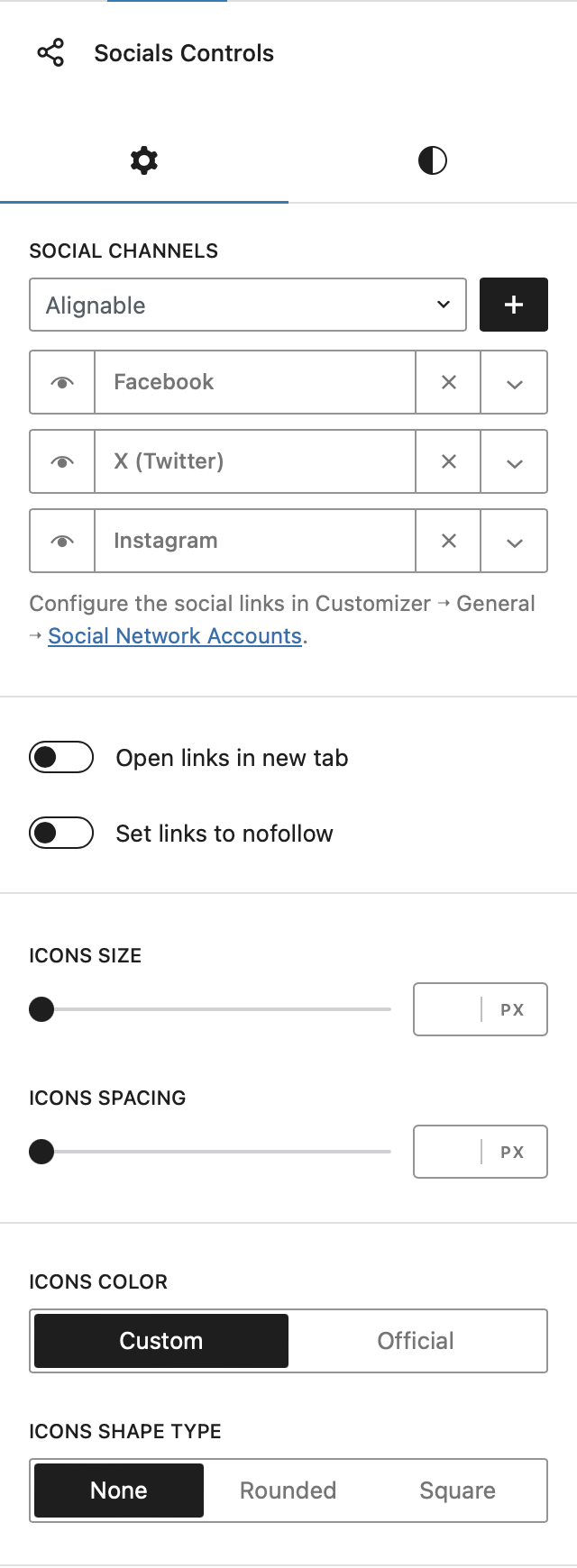
Social Channels
Choose which social networks should appear inside the block. The block can use profiles configured globally under Social Network Accounts, while individual entries can also be adjusted directly from the block when needed.
This lets you maintain a shared set of social profiles across the website while still creating a different selection for a particular page or layout.
Link Controls
Choose whether social profile links open in a new browser tab and whether the nofollow relationship should be added to them.
Use nofollow only when it is appropriate for the relationship between your website and the linked destination. It is not required simply because a link points to a social network.
Icon Size & Spacing
Adjust the size of the social icons and the amount of space between them to fit the surrounding layout.
Icon Colors
Choose how Colors are applied to the social icons. You can use a consistent custom Color across all networks or allow individual icons to use the official Color associated with each service.
Icon Shape
Display the social icons on their own or place them inside one of the available shaped containers. Use this setting together with the Color controls to match the block with the rest of your design.
Horizontal Alignment
Control the horizontal position of the Socials block within its available space. This lets you align the group of social icons to match the surrounding content without relying on additional layout blocks.