



The Contact Info block provides a structured way to display contact details anywhere the WordPress block editor is available. It can combine information such as addresses, phone numbers, email addresses, opening hours and website links in a single layout.
Individual contact entries can include their own labels, content, links and icons, making the block suitable for contact sections, sidebars, Content Blocks and other areas where visitors need quick access to your details.
Blocksy Companion required
The Contact Info block becomes available after installing and activating Blocksy Companion.
Getting Started
Open the WordPress block inserter and search for Contact Info. After adding the block to your layout, use the editor sidebar to configure the contact entries and their presentation.
You can add, remove and reorder individual entries depending on the information you want to display.
Granular Controls
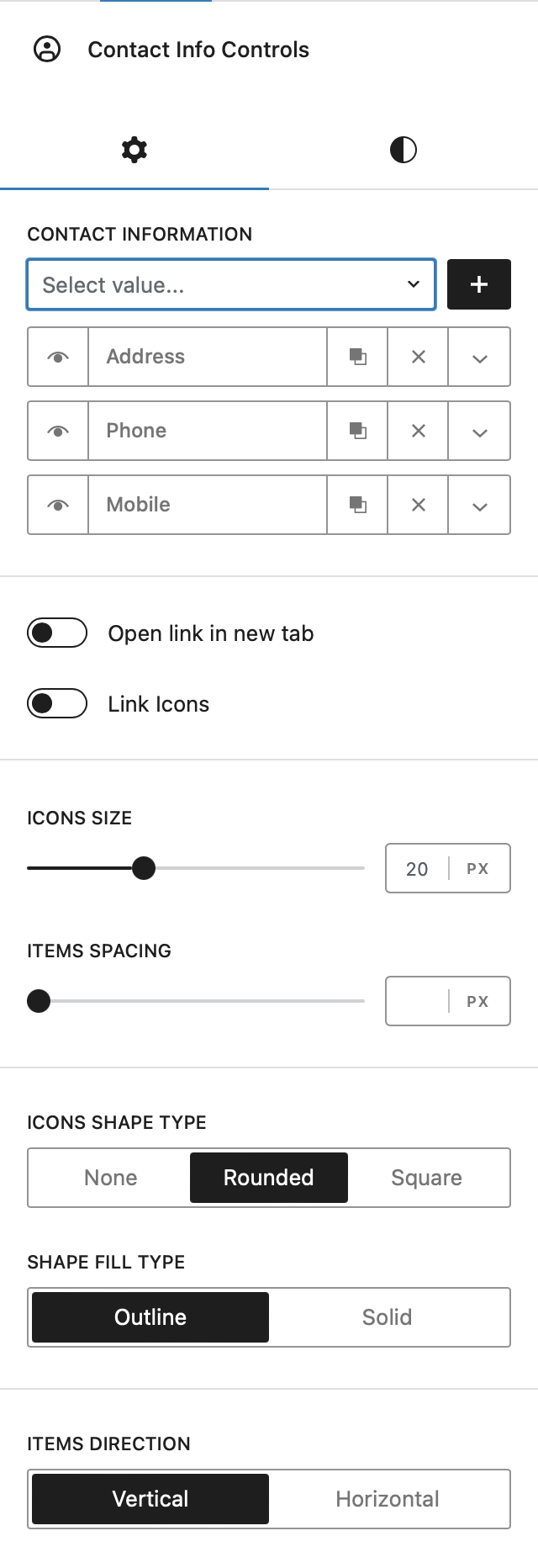
Contact Items
Add the contact methods that should appear inside the block. Available item types include:
- Address
- Phone
- Mobile Phone
- Work Hours
- Fax
- Website
Each item can be configured independently, allowing the block to contain only the contact information relevant to your website.
Item Content
Configure the text displayed for each contact item, including its title or label and the corresponding contact information.
Where applicable, contact information can be linked so visitors can interact with it directly. For example, phone numbers can initiate a call, email addresses can open the visitor’s email application and website or address entries can point to an appropriate destination.
Link Options
Configure the destination associated with an item and choose whether supported links should open in a new browser tab.
The item’s icon can also act as part of the clickable contact entry, providing a larger and more convenient interaction area.
Icon Controls
Adjust the appearance of the icons used to represent each contact method, including their size and spacing relative to the accompanying content.
Icon Shape Type
Display the icons without a surrounding shape or place them inside one of the available shaped containers. Depending on the selected style, the shape can use either an outlined or filled presentation.
Items Direction
Choose how the individual contact entries are arranged:
- Vertical – stack the contact items one underneath another.
- Horizontal – arrange the contact items across the same row when sufficient space is available.
Use the arrangement that best fits the surrounding layout and the number of contact methods displayed.