


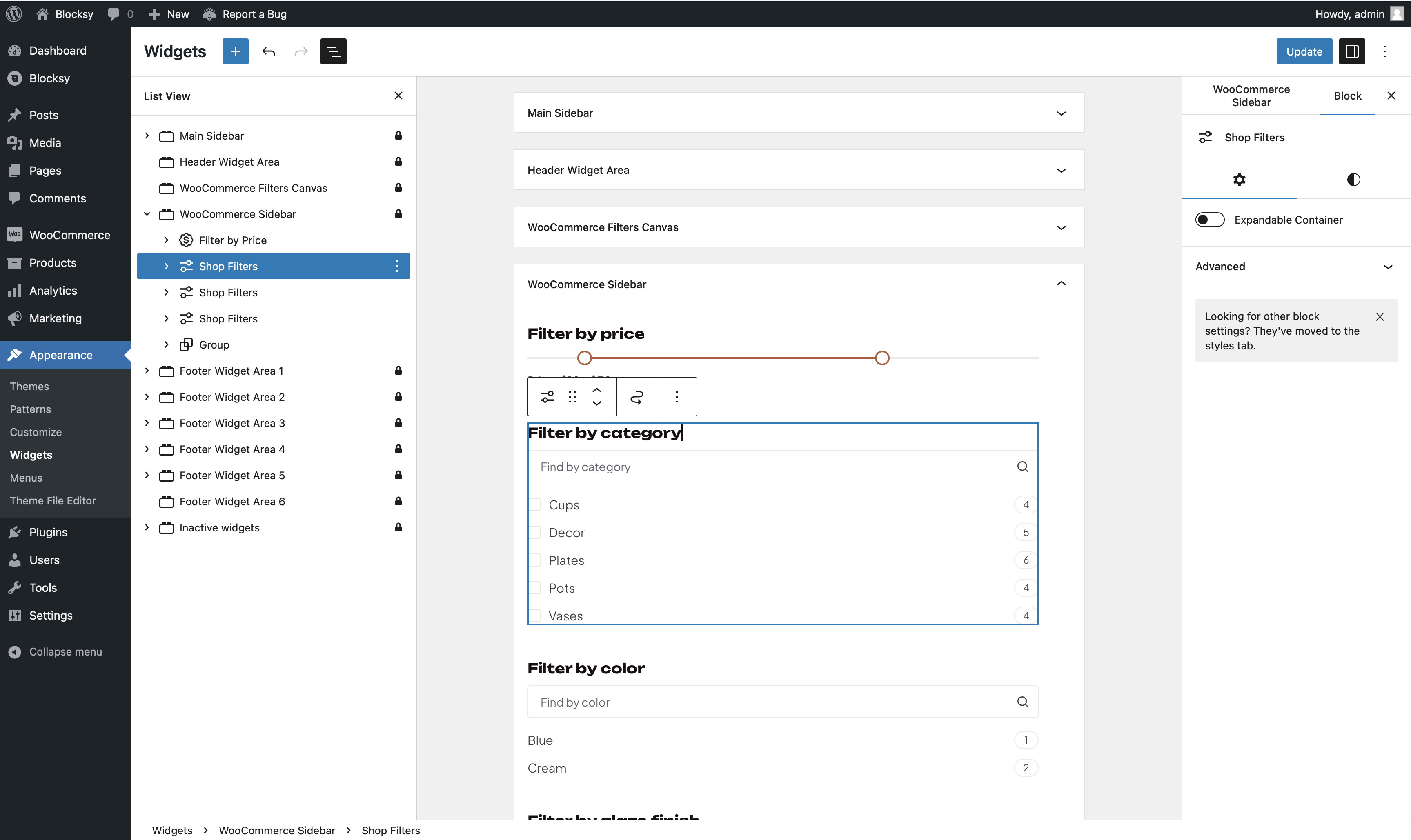
The Shop Filters block lets customers refine WooCommerce product listings using product categories, tags, brands, attributes and other supported taxonomies.
It forms part of Blocksy’s Product Filters system and can be placed in supported widget areas, the Filters Canvas or other suitable block-based shop layouts.
Blocksy Pro required
The Shop Filters block is part of the Product Filters module included with Shop Extra. WooCommerce, Blocksy Companion Pro and a Business or Agency plan are required.
Getting Started
Before adding the Shop Filters block, enable the Product Filters module:
- Navigate to WordPress Dashboard → Blocksy → Extensions.
- Locate and expand the Shop Extra extension.
- Enable the Filters module.
- Open the block editor for the shop area where you want to display the filter.
- Search for Shop Filters in the block inserter and add it to the layout.
Select the block to choose what should be used for filtering. The available controls change depending on whether you select a taxonomy or a WooCommerce product attribute.
Taxonomy Filters
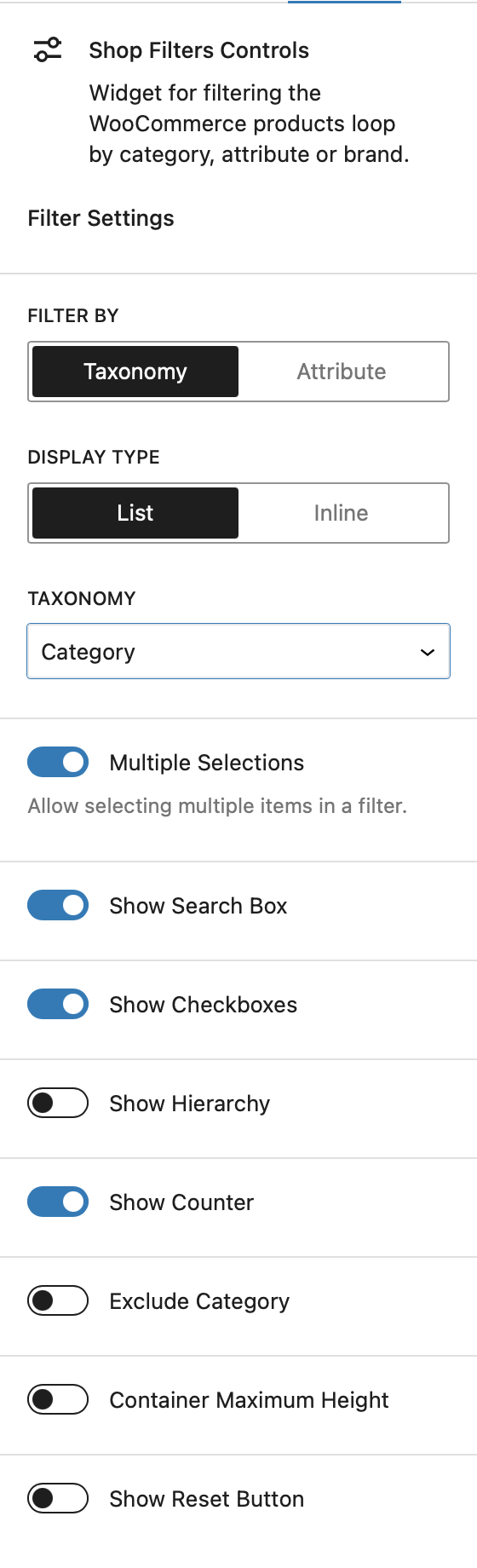
Filter By
Select the taxonomy that should be used for filtering. Depending on your WooCommerce configuration, this can include product categories, tags, brands and other supported product taxonomies.
Custom taxonomies registered for WooCommerce products can also be used as filtering sources.
Display Type
Choose how the available terms are arranged:
- List – displays the filter terms vertically.
- Inline – arranges the terms horizontally and allows them to wrap onto additional rows when required.
Multiple Selections
Enable Multiple Selections to let customers select more than one term from the same filter. Disable it when only one term should be active at a time.
Show Search Box
Display a search field above the taxonomy terms so customers can quickly find a particular option when the filter contains a large number of choices.
The search field’s placeholder text can also be customised to better describe the available choices.
Show Checkboxes
When multiple selections are enabled, display a checkbox alongside each taxonomy term to make the selection state clearer.
Show Hierarchy
Preserve the parent-child structure of hierarchical taxonomies, such as product categories containing nested subcategories.
This option can also be used with hierarchical product-brand structures when the corresponding taxonomy supports them.
Show Images
Display an image alongside taxonomy terms when image data is available for the selected taxonomy. This can be useful for visual category or brand filters where an image helps distinguish the available choices.
Show Counter
Display the number of products that currently match each taxonomy term. The counters respond to the active filtering context so customers can see how many matching products remain available.
Exclude Category
When filtering by product categories, exclude selected categories from the list of available filtering choices.
Show Reset Button
Display a reset control that clears selections made through the filter and returns it to its initial state.
Attribute Filters
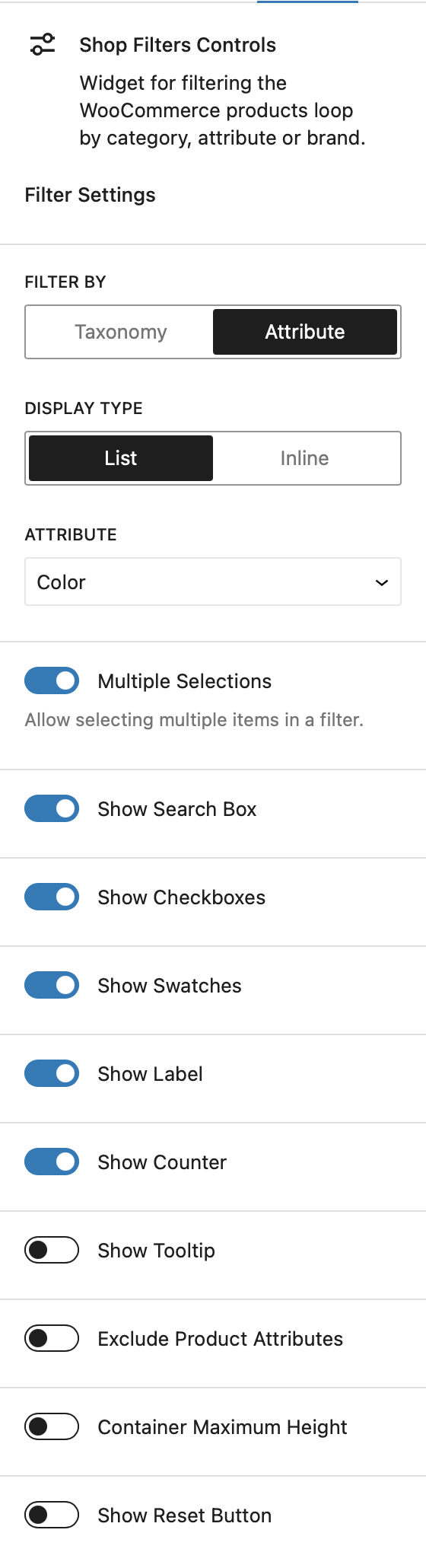
Filter By
Select the WooCommerce product attribute that should be used for filtering, such as size, Color, material or another attribute configured for your products.
Display Type
Display the available attribute values as a vertical List or an Inline arrangement that can wrap across multiple rows.
Multiple Selections
Allow customers to select multiple values from the same product attribute when refining the product listing.
Show Search Box
Display a search field for finding a specific attribute value when the filter contains many choices. The placeholder shown inside the search field can also be customised.
Show Checkboxes
When multiple selections are available, display a checkbox alongside each attribute value to make its selected state more apparent.
Show Swatches
When swatches are configured for the selected WooCommerce attribute, enable this option to display them inside the filter. Depending on the attribute configuration, these can provide a more visual representation of values such as Colors or other product options.
Show Label
Choose whether the attribute value’s text label is displayed alongside its swatch. Disable the label when you want the filter to rely on the swatches themselves.
Show Counter
Display the number of matching products alongside each attribute value. These counters update according to the current filtering context.
Show Tooltip
Display the attribute value in a tooltip when visitors interact with a swatch. This is particularly useful when the text labels are hidden.
Exclude Product Attributes
Exclude selected attribute values when they should not be presented as filtering choices.
Show Reset Button
Display a reset control that clears selections made through the attribute filter and restores its initial state.
Combining Multiple Filters
You can add multiple Shop Filters blocks to the same filtering area, with each block configured for a different taxonomy or product attribute. For example, a shop can provide separate filters for product categories, brands, sizes and Colors.
The filters work together against the current WooCommerce product listing, allowing customers to progressively narrow the available products using several criteria.
You can also combine Shop Filters with Blocksy’s Filter by Price, Filter by Status and Active Filters blocks to build a more complete product-filtering interface.