



Starting with WooCommerce 10.9, the Product Variations Gallery feature is part of WooCommerce core. Blocksy fully supports this functionality and works with it out of the box.
The Product Variations Gallery feature lets you assign a dedicated gallery of images to each product variation. Unlike the traditional setup, where a variation can have only a single featured image, each variation can now have its own ordered collection of images.
When a shopper selects a variation on the product page, Blocksy automatically updates the gallery to display the images assigned to that variation.
From the WordPress dashboard, each variation’s featured image and gallery are managed together as a single ordered list. The first image in the list is automatically treated as the primary image for that variation.
Since the feature is provided by WooCommerce and supported natively by Blocksy, there is nothing additional to configure. Once available in your WooCommerce installation, it works automatically.
Configuring Product Variations Gallery
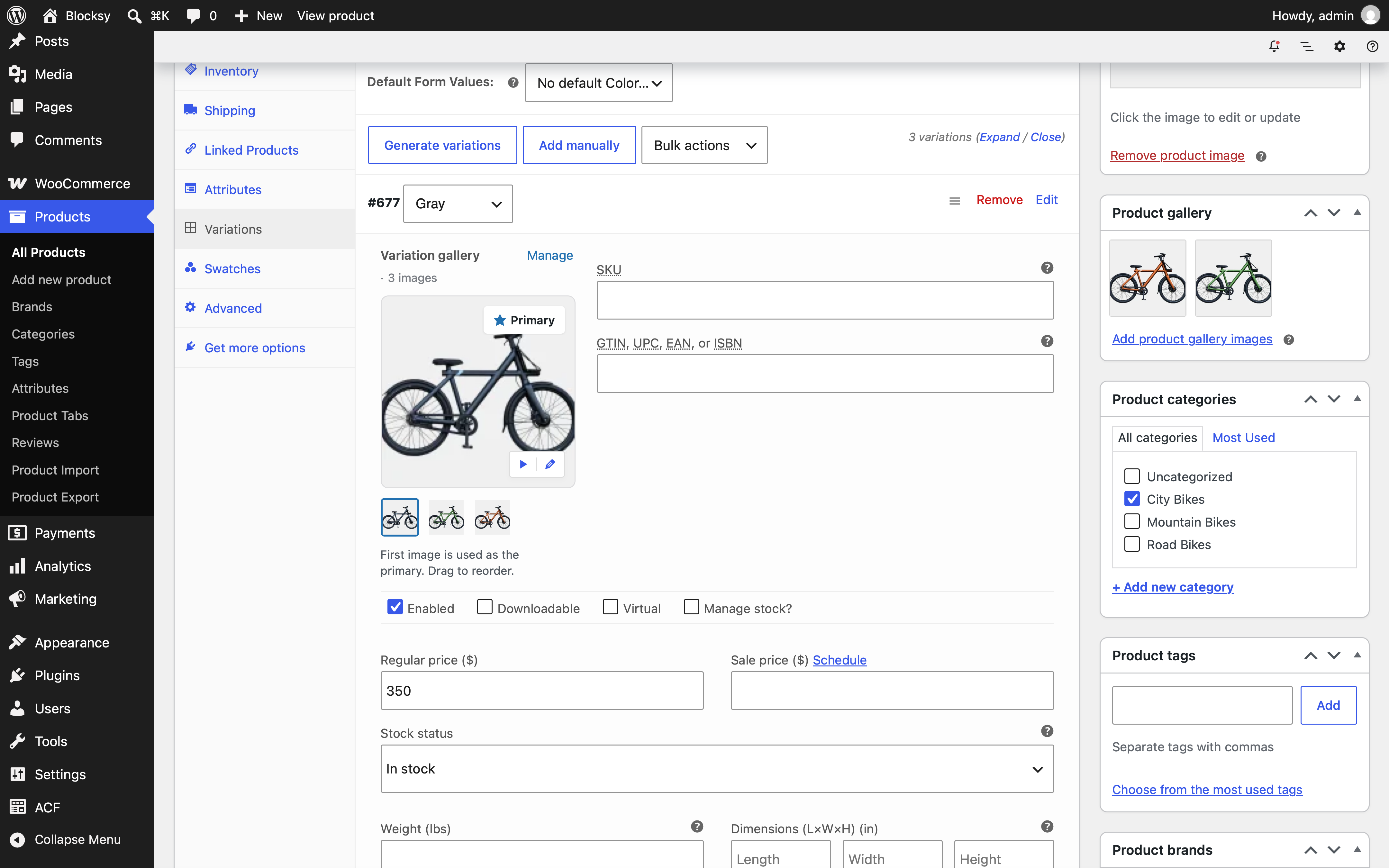
To configure a gallery for a product variation, edit the product as you normally would and open the Variations tab in the Product Data section. Expand the variation you want to configure, then locate the Variation Gallery section and click Manage to select the images you want to use.
You can arrange the images in the desired order, with the first image automatically becoming the primary image for the variation.
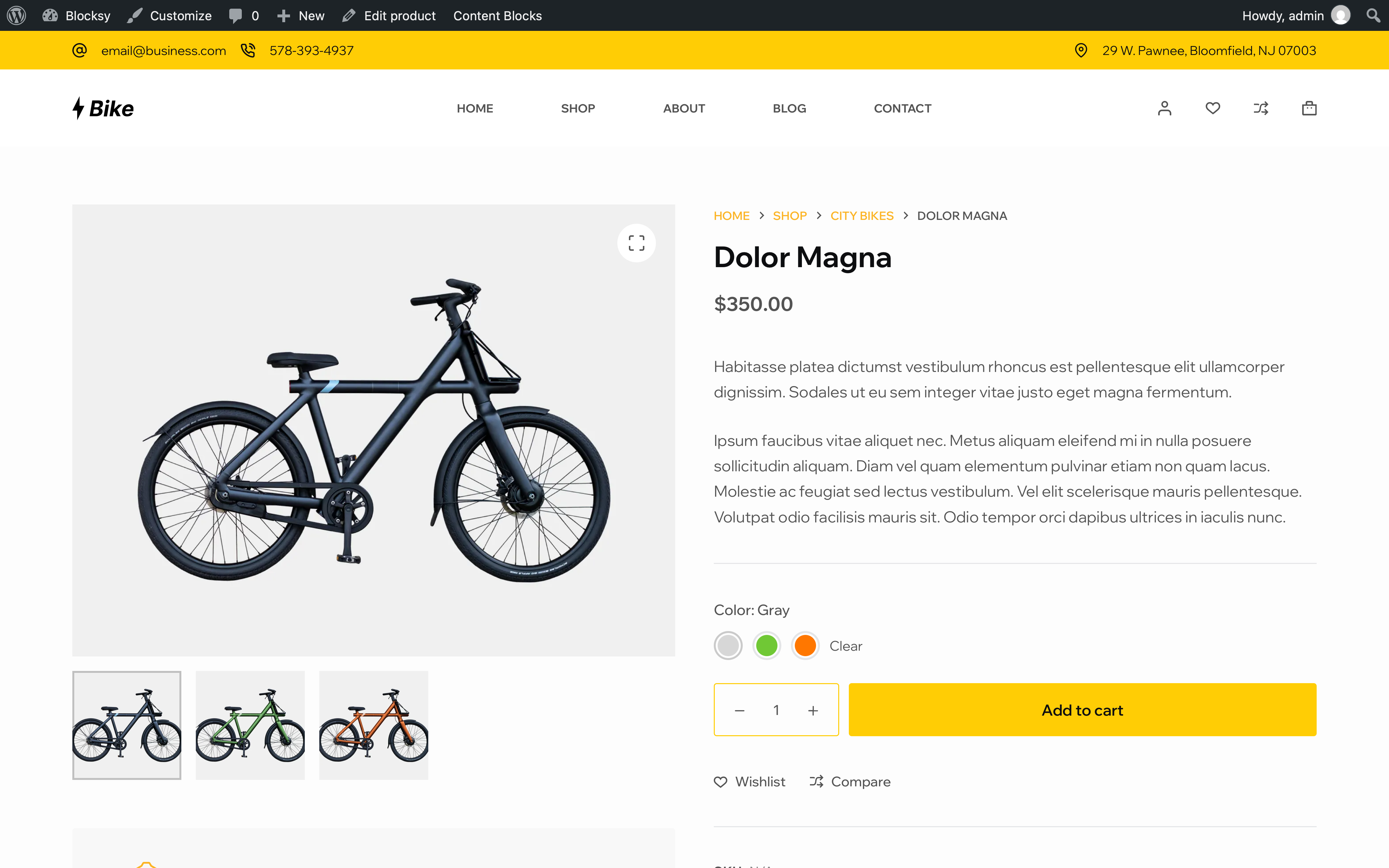
Once the images have been assigned, they will automatically be displayed on the front end whenever the corresponding variation is selected.