


The Product Filters module, available as part of Blocksy Pro’s Shop Extra extension, lets customers narrow down WooCommerce product listings using categories, attributes, brands and other supported product taxonomies.
Once the module is active, the Shop Filters block becomes available in the WordPress block editor and can be placed in supported widget areas or other suitable block-based layouts.
Getting Started
To activate Product Filters:
- Open your WordPress dashboard.
- Navigate to Blocksy → Extensions.
- Locate and expand the Shop Extra extension.
- Enable the Filters module.
You can then search for the Shop Filters block in the Gutenberg block library and add it to your preferred filtering area.

Granular Controls
The available controls depend on whether the block is filtering by a product taxonomy or a WooCommerce product attribute.
Taxonomy Filters
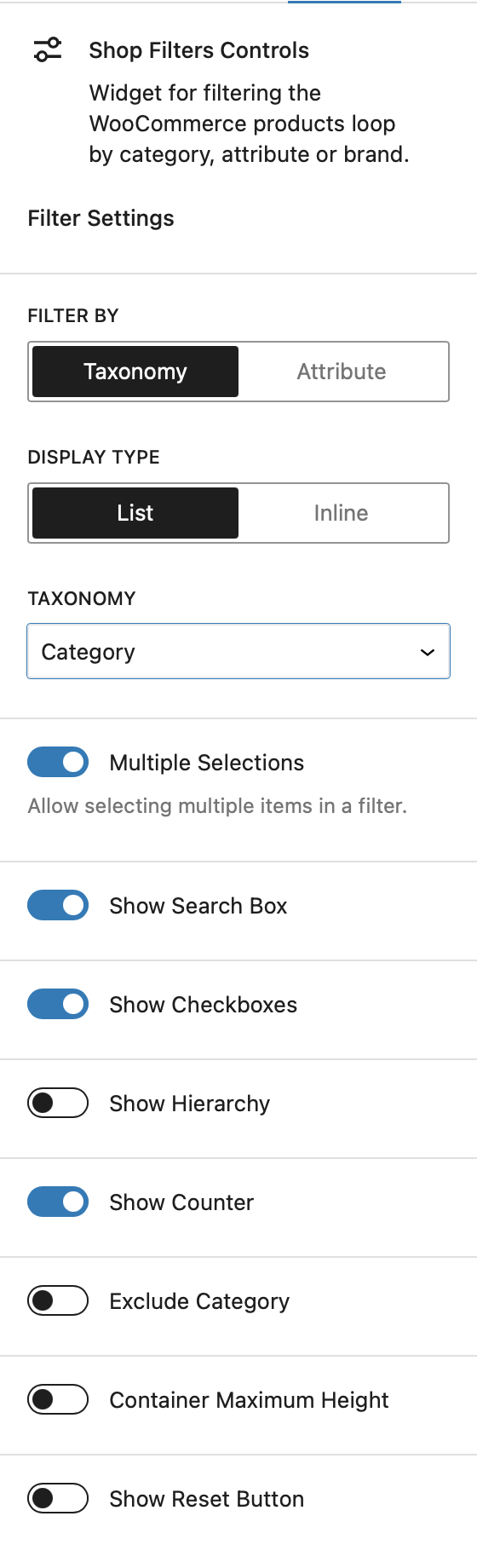
Filter By
Select the taxonomy that should be used for filtering. Depending on your WooCommerce configuration, this can include product categories, tags, brands and other supported product taxonomies.
Display Type
Choose how the available filter terms are arranged:
- List – displays the filter terms vertically.
- Inline – places the terms horizontally and allows them to wrap onto additional lines when required.
Multiple Selections
Allow customers to select more than one term from the filter instead of restricting the filter to a single selection.
Show Search Box
Add a search field above the available terms. This is particularly useful for taxonomies containing a large number of choices.
Show Checkboxes
When Multiple Selections is enabled, display a checkbox next to each term to make multi-selection clearer.
Show Hierarchy
Preserve the parent-child structure of hierarchical taxonomies, such as product categories with nested subcategories.
Show Counter
Display the number of matching products next to each available filter term.
Exclude Category
Exclude selected product categories from the list of available filtering choices.
Show Reset Button
Add a reset control that lets customers clear the selections made through the filter.
Attribute Filters
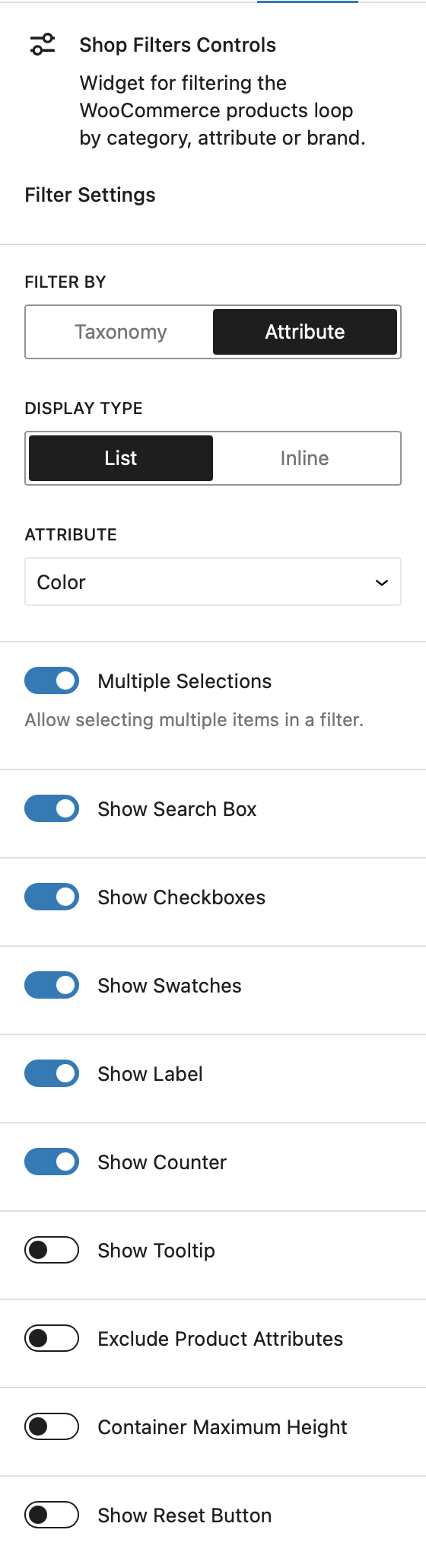
Filter By
Select the WooCommerce product attribute that should be used for filtering, such as size, Color, material or another attribute configured for your products.
Display Type
Display the available attribute terms as a vertical List or an Inline arrangement that can wrap across multiple rows.
Multiple Selections
Allow customers to select multiple values from the same product attribute when refining the product listing.
Show Search Box
Display a search field for quickly finding a particular attribute value when the filter contains many choices.
Show Checkboxes
When multiple selections are available, display checkboxes next to the attribute values.
Show Swatches
When the selected product attribute has swatches configured, display those swatches inside the filter instead of relying only on text values.
Show Label
Choose whether the text label is displayed alongside each attribute swatch. Disable it if you prefer to show the swatches on their own.
Show Counter
Display the number of matching products alongside each attribute value.
Show Tooltip
Display the attribute value inside a tooltip when visitors interact with a swatch. This is particularly useful when text labels are hidden.
Exclude Product Attributes
Remove selected attribute values from the filter so they are not presented as filtering choices.
Show Reset Button
Add a reset control that clears the selections made through the attribute filter.
Front-End Result
