



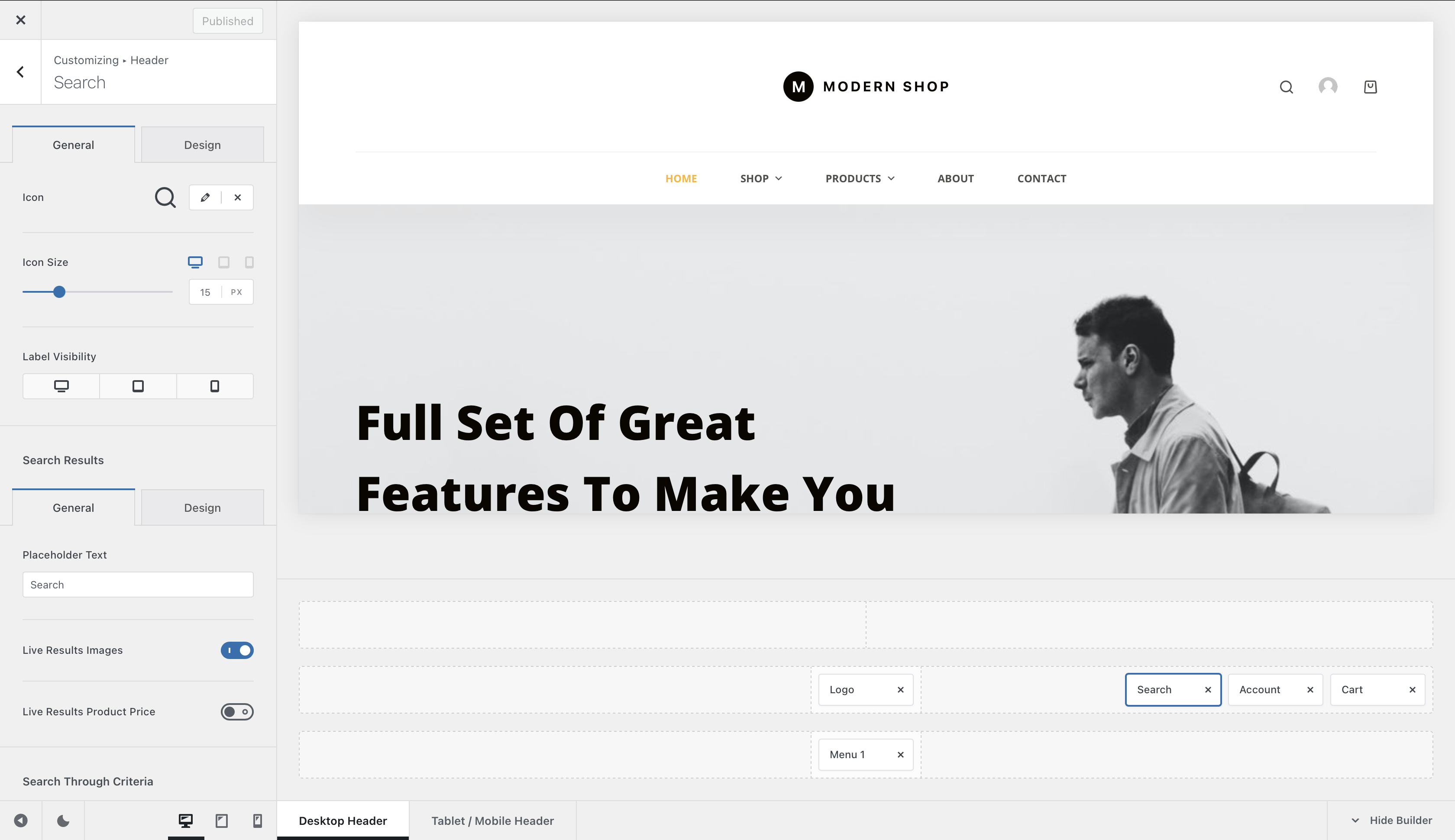
The Search element gives visitors quick access to your website’s search functionality directly from the header. Selecting the element opens a search overlay where visitors can enter their query and, when enabled, see matching results as they type.
Searches can include standard WordPress content such as posts and pages, WooCommerce products, and compatible Custom Post Types registered by plugins.
To use it, open the Customiser → Header, drag the Search element into the desired header row or supported area, and select it to configure its appearance and search behaviour.
Granular Controls
Icon Controls
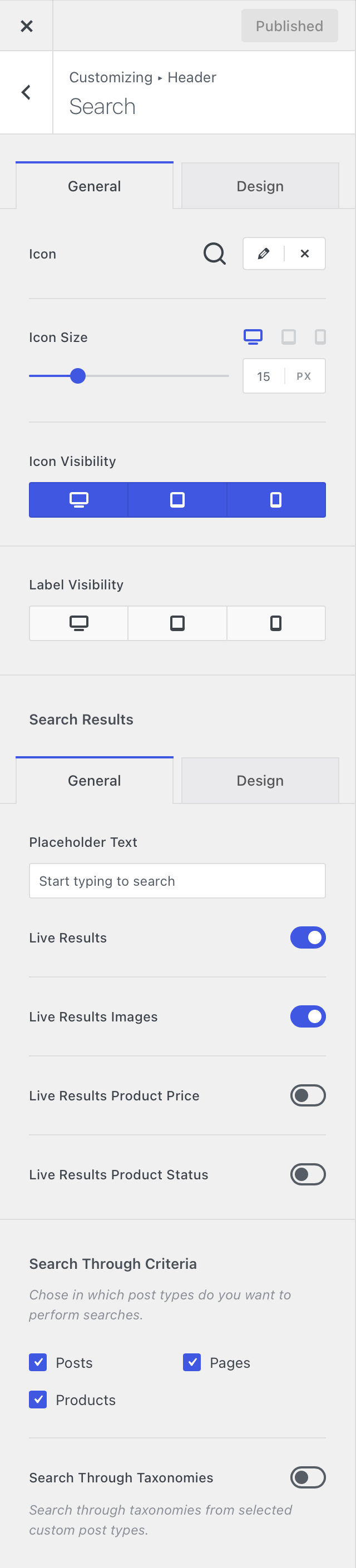
Choose the icon used to represent the Search element in the header. Blocksy provides built-in search icons, while Blocksy Pro also lets you use a custom SVG icon.
The Icon Size control lets you adjust its dimensions independently across the available responsive device views.
Icon Visibility
Choose whether the search icon itself is displayed on desktop, tablet and mobile devices. This can be useful when you want to rely primarily on the element’s text label in a particular header layout.
Label Visibility
Control whether the Search element’s text label is displayed on desktop, tablet and mobile devices independently. This lets you combine an icon and descriptive label on larger screens while using a more compact presentation where space is limited.
Search Results
These settings control the search overlay and the results presented while visitors enter their query.
Placeholder Text
Customise the placeholder displayed inside the search field before the visitor starts typing. This can be used to provide a short instruction or indicate what kind of content can be searched.
Live Results
Enable Live Results to display matching content dynamically while the visitor types their search query. When disabled, visitors can still submit the search normally and continue to the standard search results page.
Live Results Images
Choose whether featured images or product thumbnails are displayed alongside entries in the live results interface. Disabling images creates a more compact, text-focused results list.
Live Results Product Price
When WooCommerce products are included in the search, enable this option to display their current prices directly inside the live results.
Live Results Product Status
When WooCommerce products are included in the search, enable this option to display relevant product status information directly inside the live results. This can include states such as In Stock, Out of Stock or On Sale, helping visitors understand a product’s availability or current status before opening it.
Search Through Criteria
Choose which content types should be included when a visitor performs a search. Depending on your WordPress configuration, the available choices can include Posts, Pages, Products and compatible Custom Post Types registered by other plugins.
This lets you keep the search focused on the content that is relevant to your website instead of querying every available post type.
Search Through Taxonomies
Enable Search Through Taxonomies to include taxonomy terms in search queries alongside content from the selected post types. This allows visitors to find relevant categories, tags and other registered taxonomy terms in addition to individual posts, pages, products and Custom Post Types.