

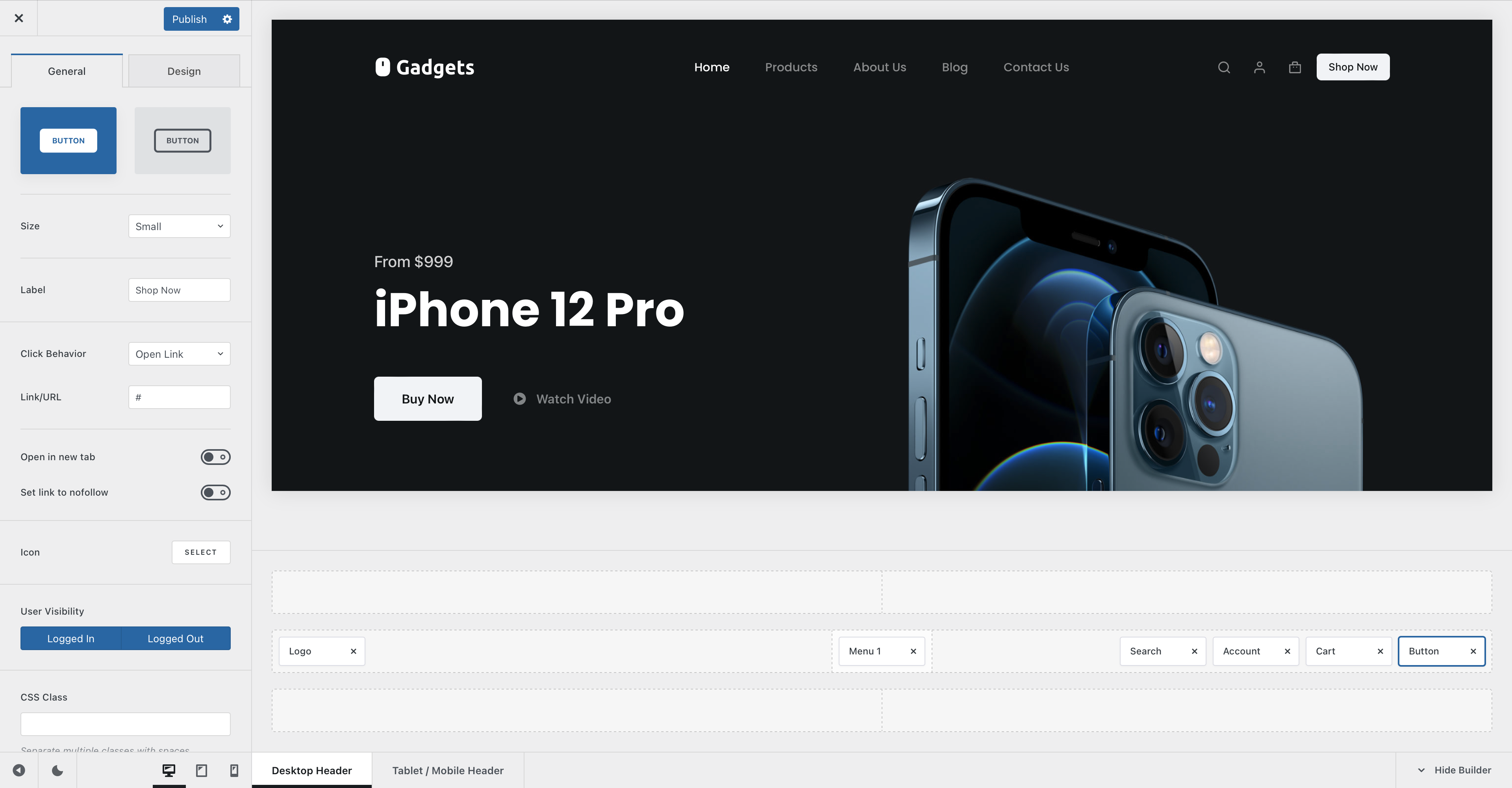
The Button element adds a prominent call to action to your website’s header. It can link visitors to another location or, with Blocksy Pro, open a Content Block pop-up directly from the header.
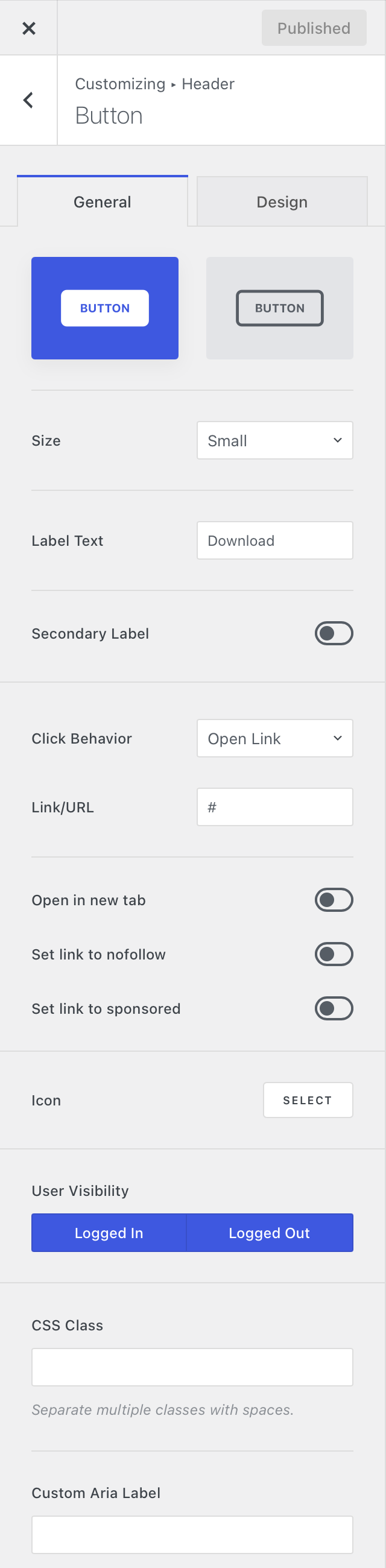
To use it, open the Customiser → Header, drag the Button element into the desired header row, and select it to configure its content, behaviour and appearance.
Granular Controls
Button Style
Choose between the two available button presentations:
- Filled – uses a solid background to give the button greater visual emphasis.
- Outlined – uses a more subtle bordered presentation.
Size
Select the overall size of the button:
- Default – inherits the global button sizing configured under Customiser → General → Buttons.
- Small
- Medium
- Large
Label
Enter the primary text displayed inside the button.
A Secondary Label is also available when you need to add a second line of supporting text to the button.
Click Behaviour
The Click Behaviour determines what happens when a visitor selects the button.
- Link – sends the visitor to the URL configured for the button. The URL field also supports shortcodes where required.
- Open Pop-up – opens a selected Pop-up Content Block. This behaviour is available with Blocksy Pro.
For regular links, additional options let you open the destination in a new browser tab and apply supported link relationship attributes such as nofollow or sponsored.
Opening a pop-up
The pop-up action requires Blocksy Pro and an existing Pop-up Content Block. Create and configure the pop-up first, then select it from the Button element’s click behaviour settings.
Icon
Add an icon alongside the button label using Blocksy’s icon picker. You can choose from the available built-in icons or upload a custom icon where supported.
The icon controls also let you adjust its presentation and visibility, including whether it should appear on particular responsive device views.
User Visibility
Control whether the Button element is displayed according to the visitor’s authentication state. This can be used to show a particular call to action only to logged-in users or only to logged-out visitors.
CSS Class
Add a custom CSS class to the Button element when you need to target it with custom styling, JavaScript or a compatible third-party integration.
Custom Aria Label
Provide a custom ARIA label for the button when its visible text or icon does not clearly describe its purpose to assistive technologies. This gives screen reader users a more descriptive explanation of the action the button performs.